Getting Started with Microsoft Copilot in Outlook
Staring at a blank screen while trying to draft an important client proposal can drain your productivity before the day has even properly begun. Integrating Microsoft Copilot in Outlook into your daily routine is like having a professional editor and personal assistant sitting right beside you. This powerful feature within Microsoft 365 Copilot helps small business owners across Australia overcome "writer's block" by turning simple ideas into polished, professional drafts in seconds. By leveraging AI email drafting, you can reclaim hours of your work week that would otherwise be spent agonising over the perfect phrasing for a customer enquiry or a supplier negotiation.
Locating the AI Tools in Your Inbox
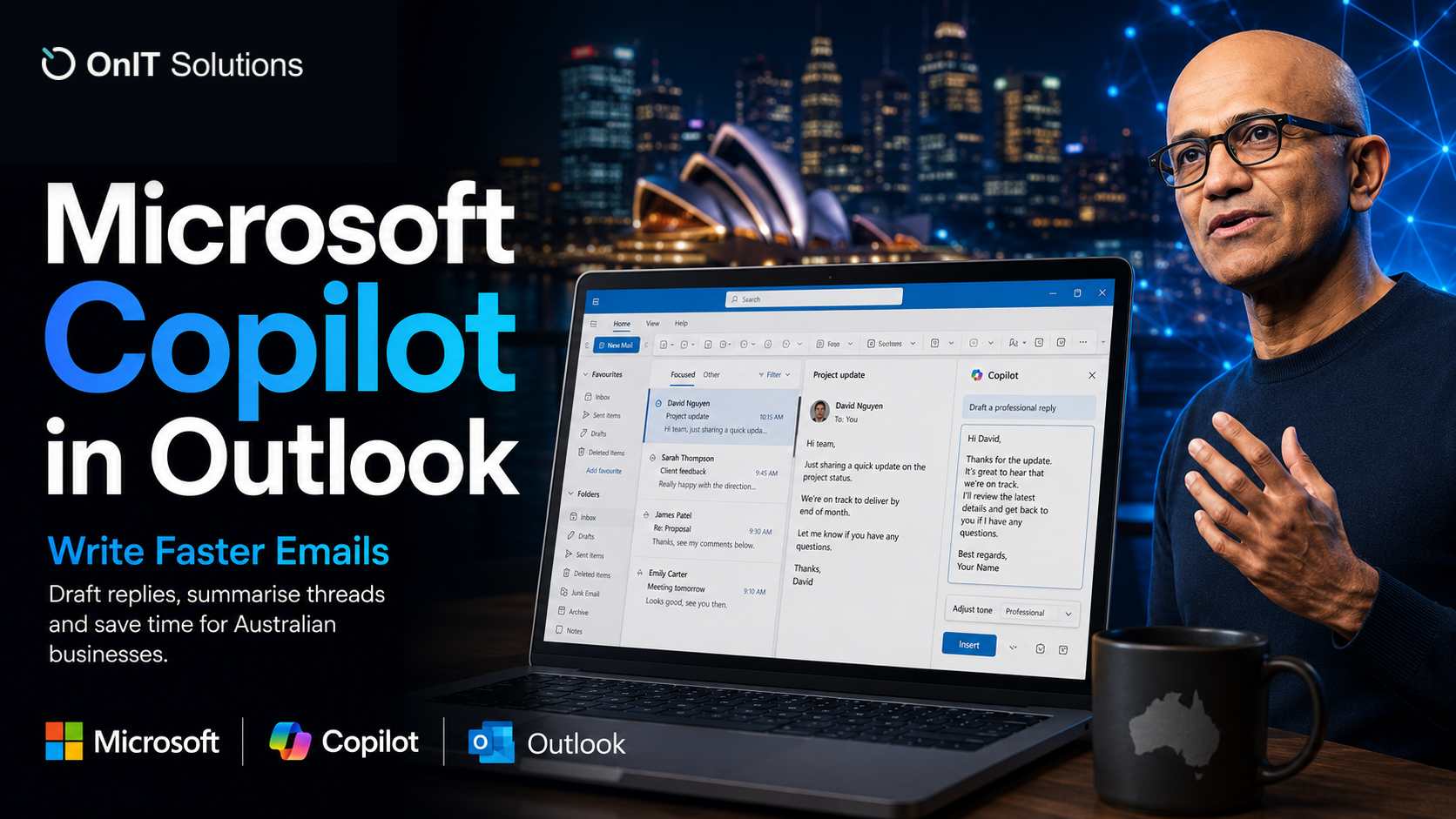
To start using these Outlook productivity tips, you first need to know where the AI lives within your interface. The software is designed to be unobtrusive, appearing exactly when you need it most during the composition process. You can typically find the tool in one of two places:
- The Message Body: When you open a new message or click "Reply," look for the small, colourful Copilot logo in the left margin of the blank text area. Clicking this will immediately open a prompt box.
- The Ribbon Toolbar: If the margin icon isn't visible, look at the top of your screen in the ribbon. You will see a Copilot icon; clicking the small downward arrow next to it will reveal the
Draft with Copilotoption.
Once you’ve located the tool, the magic happens through intent recognition. You don’t need to be a "prompt engineer" or have technical expertise to get great results; simply provide a brief description of what you want to say. For instance, typing "Ask Sarah for a follow-up meeting regarding the Sydney project next Tuesday" allows the AI to understand the context and generate a complete, structured message. This capability for generating AI email responses ensures that the core message remains clear while the software handles the structural heavy lifting.
Efficiency Benefits for Australian Small Businesses
For Australian SMBs, the benefits extend far beyond just typing speed. Professionalism is key to maintaining client trust, and using AI helps eliminate common grammatical errors and awkward phrasing that can sometimes slip through during a busy afternoon. Whether you are following a specific AI strategy or just looking to improve your internal communications, this tool ensures your brand voice remains consistent and polished.
Reducing the time spent on composition means your team can focus on high-value tasks, like closing sales or providing top-tier customer service, rather than getting bogged down in their inboxes. By handling the "first draft" of every message, the tool allows you to spend your energy on the final 10% of the message — the personal touch that truly matters to your clients. Getting your workspace ready is the first step toward a more efficient way of communicating with your clients and partners.
How to Use AI Email Drafting for Better Productivity
Imagine clearing a backlog of fifty unread messages before your morning coffee has even gone cold. For most office workers, the primary barrier to a clean inbox isn't the volume of work, but the mental energy required to phrase each individual response correctly. By using AI email drafting, you can shift your focus from the mechanics of typing to the strategy of your communication. Using Microsoft Copilot in Outlook allows you to turn a three-word thought into a three-paragraph professional email in seconds, ensuring your team stays responsive and your clients feel heard.
Step-by-Step: Creating Your First Draft
Getting started with Microsoft 365 Copilot is straightforward and requires no technical training or complex IT setup. Follow these steps to generate your first AI-assisted message:
- Open Outlook and click on
New Emailor select a message you wish to reply to. - Place your cursor in the body of the email and look for the Copilot icon (the colourful loop) in the margin, or click the
Draft with Copilotbutton in the top ribbon toolbar. - In the prompt box that appears, describe what you want the email to say in plain English. For example: "Draft a thank you note to the team for the successful launch of the Melbourne project and mention the next meeting on Friday."
- Click
Generateand wait a few moments for the software to build your response.
Refining Tone and Length with Outlook Productivity Tips
Once the initial draft is generated, you aren't stuck with the first version the AI provides. You can easily adjust the output to better suit the specific needs of your business or the relationship you have with the recipient. Within the Copilot interface, you will see a "Generation options" menu (often represented by a sliders icon) that allows you to change the tone to 'Professional', 'Casual', or 'Direct'. For Australian business contexts, 'Professional' is usually the safest bet for external vendors, while 'Casual' works well for internal team chats.
You can also toggle the length of the response to keep things concise for quick internal updates or more detailed for formal proposals. These Outlook productivity tips are designed to help you maintain a consistent brand voice without spending twenty minutes on a single message. If the draft isn't quite right, you can provide feedback in the "Keep it" box by typing instructions like "Make it sound more urgent" or "Shorten the second paragraph" to iterate on the text until it is perfect.
Reviewing AI Email Responses Before Sending
The final and most crucial step is the human review. Even though AI email responses are highly sophisticated, your personal touch is what builds genuine trust with your local clients. Take a moment to read through the draft to ensure the phrasing feels natural to you. This is also the time to add any specific local context that the AI might have missed, such as a reference to an Australian public holiday or a shared personal anecdote. If your business is looking to scale this efficiency further across other departments, you might even consider AI agent deployment to handle even more complex data-driven tasks.
By treating the AI as a helpful collaborator rather than a total replacement for your own judgment, you ensure every email leaving your inbox is both efficient and accurate. This balanced approach allows you to stay on top of your communication while freeing up time for high-level tasks that require your unique expertise and direct input.
Creating Tailored AI Email Responses and Personalised Replies
Jumping into a complex email chain after a few days away often feels like trying to solve a puzzle with half the pieces missing. Instead of scrolling through dozens of "Reply All" messages to find out what was actually decided, you can use Microsoft Copilot in Outlook to instantly bridge the gap. This tool doesn't just write from scratch; it "reads the room," understanding the full history of your conversation so your AI email responses are relevant, accurate, and timely.
Contextual Intelligence for Smarter Replies
When you hit "Reply" on an existing thread, the AI doesn't just look at the last message sent; it analyses the context of the entire discussion. This allows Microsoft 365 Copilot to suggest specific answers to questions buried three or four emails deep. For example, if a client asks about pricing in the first email and a timeline in the third, Copilot can draft a response that addresses both points without you needing to hunt for the details yourself. This level of AI email drafting ensures no customer query goes unanswered, even in the busiest of inboxes.
Summary by Copilot button at the top of a long thread before you start drafting. It provides a bulleted list of key points and decisions made so far, ensuring you don't repeat information or miss a vital action item.Refining Your Tone with Outlook Productivity Tips
One of the biggest concerns for Australian business owners is that AI might sound too "robotic" or impersonal for local clients. To solve this, you can adjust the preferences for tone and format within the drafting window. Whether you need to sound authoritative for a formal contract or casual for a quick team check-in, you can toggle between settings to ensure the message aligns with your brand's unique voice. These Outlook productivity tips help maintain a human touch while leveraging the speed of modern technology.
- Professional: Best for external stakeholders, new clients, or formal proposals.
- Casual: Ideal for internal team updates or long-term partners where you have an established rapport.
- Short & Direct: Perfect for quick acknowledgments or confirming meeting times while you are on the move.
Beyond just the tone, you can also specify the length of the response. If you're responding on a mobile device while between meetings in Melbourne or Sydney, you might prefer a concise, three-sentence reply. If you're at your desk, you can prompt the AI to provide a more detailed explanation. This flexibility allows the software to adapt to your specific workflow, rather than forcing you to change how you communicate.
Maintaining Accuracy and Security
While the speed of these tools is impressive, it is vital to maintain a "human-in-the-loop" approach. Always review the suggested text to ensure names, dates, and specific Australian business requirements—like GST mentions or local time zones—are correct. Integrating these tools into your broader AI strategy helps ensure your team uses technology responsibly while staying productive throughout the day.
Security is equally important when handling sensitive business data. Because the system operates within the secure Microsoft ecosystem, your data stays within your organisation's boundary. This aligns with standard cybersecurity best practices, giving you peace of mind that your private client conversations aren't being leaked to public AI models. Mastering these personalised replies sets the foundation for even deeper time savings as you move from simple responses to fully automated office routines.
Automating Email Workflows for Your Business
Eliminating the drudgery of repetitive administrative tasks is the quickest way to give your team back their most valuable asset: time. By leveraging Microsoft Copilot in Outlook, you can move beyond simple AI email drafting and start building a smarter, more responsive inbox that handles the heavy lifting for you. These automation features allow Australian small businesses to streamline their daily operations without the need for a dedicated IT department or complex software integrations.
Implementing Shortcuts with Natural Language Prompts
Most business owners spend hours every week performing the same manual actions, such as sorting high-priority client requests or distributing status reports. You can now use simple, conversational prompts to trigger these actions instantly within Microsoft 365 Copilot. For example, by telling the AI to "Flag urgent emails from the Sydney office" or "Prepare a draft for my weekly update based on this week's sent items," you turn a multi-step manual process into a single command. These Outlook productivity tips are designed to reduce the mental load of organising a busy inbox, ensuring that nothing falls through the cracks during a hectic work week.
Non-Technical Automation for Every Employee
The beauty of modern AI integration is that it requires zero coding knowledge or technical background to implement across your office. Traditionally, setting up email rules or complex workflows required navigating deep menus and "if-then" logic, which often discouraged non-technical staff from attempting them. Now, because the system understands natural language, any team member can create sophisticated AI email responses and workflows just by describing what they need in plain English. This democratisation of technology helps staff at all levels contribute to a more efficient workplace without needing constant intervention from technical support.
Security and ACSC Compliance for Australian Workplaces
As businesses across Australia increasingly adopt AI, staying aligned with the Australian Cyber Security Centre (ACSC) guidelines is vital for protecting sensitive client data. When you use Microsoft Copilot in Outlook within a properly configured business environment, your data remains within the protected Microsoft 365 boundary, ensuring that proprietary information isn't leaked to public AI models. Implementing these tools as part of a broader AI strategy allows you to improve efficiency while maintaining the high standards of cybersecurity required in the modern digital landscape. By following best practices for data governance and using modern Microsoft tools, your business can enjoy the speed of AI while remaining resilient against evolving online threats.
Focusing on these automated workflows ensures your team spends less time managing their tools and more time delivering high-value results for your customers.
Frequently Asked Questions
Where is the Copilot button in Outlook?
You can find the Copilot icon in two places: it appears in the left margin when your cursor is in the body of a new email, or you can find it at the right end of the ribbon toolbar by clicking the down arrow next to the Copilot button and selecting 'Draft'.
Can I change the tone of the emails Copilot writes?
Yes, Copilot allows you to adjust the tone of your draft. After entering your prompt, you can use the built-in options to make the message more professional, casual, or direct, ensuring the response fits your specific needs.
Do I need coding skills to automate tasks with Copilot in Outlook?
No, you do not need any coding or technical skills. Copilot is designed for non-technical users, allowing you to set up shortcuts and automate repetitive actions simply by typing natural language prompts.
Does Microsoft Copilot work with existing email threads?
Absolutely. Copilot can analyse the context of a thread to suggest replies that address previous points of discussion, and it can also summarise long conversations to save you time when catching up on a thread.
Sources
- https://www.aspiretech.com/blog/7-ways-microsoft-copilot-helps-you-use-outlook-more-efficiently/
- https://www.computerworld.com/article/3479705/how-to-use-microsoft-copilot-for-writing-in-microsoft-365-word-outlook-onenote.html
- https://www.microsoft.com/en-us/microsoft-365-life-hacks/everyday-ai/communication-skills/ai-email-writing-with-copilot-in-outlook
- https://support.microsoft.com/en-us/office/draft-an-email-message-with-copilot-in-outlook-3eb1d053-89b8-491c-8a6e-746015238d9b
- https://support.microsoft.com/en-us/office/get-email-coaching-with-copilot-in-outlook-91a3cd56-1586-4a31-85c7-2eb8cdb02405
- https://www.syskit.com/blog/3-ways-how-to-use-copilot-in-outlook/
Ready to Go Beyond the Basics?
AI tools are just the start. OnIT Solutions specialises in deploying custom AI Agents that automate real business workflows — from customer service to data analysis. Book a free AI Strategy session and see what's possible for your business.