Foundations: Licensing and Your Microsoft 365 Business Account
Running a growing business requires more than just a chat app; it requires a digital hub where your files, meetings, and phone calls live in one secure place. To properly set up Microsoft Teams, you first need to establish a solid foundation within the Microsoft 365 business ecosystem. While many users are familiar with the free version of Teams, the business editions offer the security, storage, and integration necessary for professional operations in the Australian market.
Unlocking Features with a Collaborative Workspace Setup
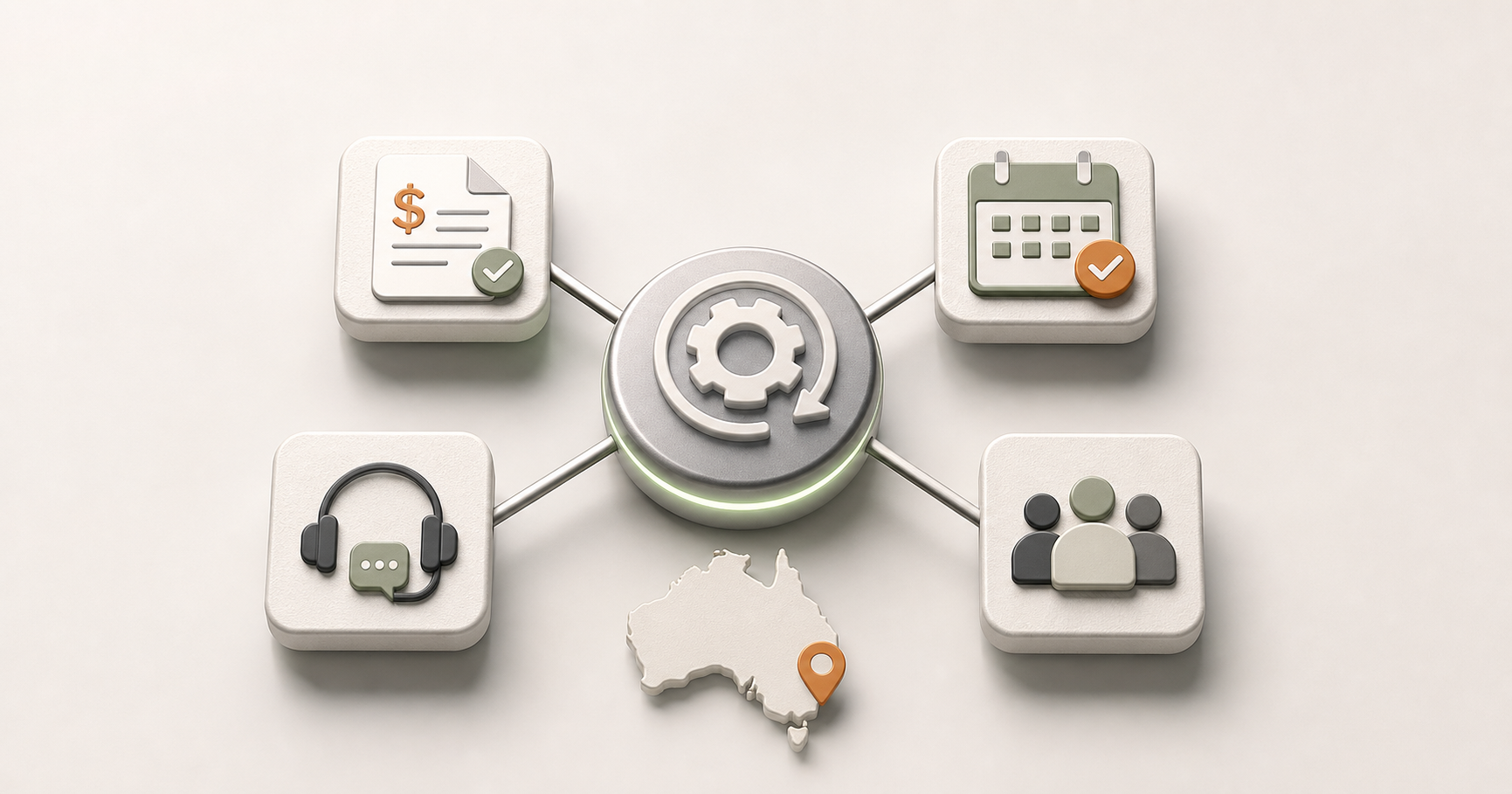
Transitioning to a paid subscription unlocks advanced capabilities that turn a simple chat tool into a comprehensive business communication software suite. For example, higher-tier licenses allow you to host high-quality webinars with attendee registration and engagement reporting, which is perfect for Australian firms looking to lead industry workshops. Additionally, you can integrate a Teams Phone license to replace your traditional landline, allowing staff to take office calls on any device using their business number.
Optimising the Teams Admin App for Scheduling
One of the most overlooked benefits of a professional collaborative workspace setup is the ability to share availability and schedule meetups through Microsoft Bookings. Instead of the usual back-and-forth emails to find a time that works, you can provide a public-facing booking page for your clients. Once a client selects a time, the Teams admin app manages the backend, automatically placing the meeting on your calendar and sending a Teams link to all parties.
We encourage all Australian SMBs to perform a quarterly audit of their current licensing via the Subscriptions page in the Microsoft 365 admin centre. This ensures you aren't paying for "zombie" licenses from former employees and that your current headcount has the right features for their specific roles. Managing these settings centrally through cloud solutions ensures your team remains productive and secure whether they are in the office or working remotely from home.
Confirming that your subscription is active and correctly assigned is the vital first step before you begin the process of onboarding your individual team members and assigning their specific roles.
Adding Users and Managing Licenses via the Teams Admin App
Getting your staff registered and ready to work is the most rewarding part of the migration process, as it turns a blank workspace into a buzzing hub of activity. When you set up Microsoft Teams, you don't actually need to navigate through complex web portals to manage your people; you can handle the majority of staff onboarding directly from within the Teams interface itself. This streamlined approach allows business owners to manage their collaborative workspace setup without needing a deep technical background or a dedicated server room.
Managing Staff Access via the Teams Admin App
To begin adding your team, you will need to use the Teams admin app, which acts as a simplified version of the broader Microsoft 365 portal. You can find this tool by clicking on the Apps icon in the left-hand sidebar of your Teams client and searching for Admin. Once you open it, we recommend right-clicking the icon and selecting Pin so it remains easily accessible for future adjustments to your Microsoft 365 business environment.
Onboarding Users to Your Business Communication Software
Once you have the admin tool open, bringing your employees on board is a straightforward process that ensures they have the right tools from day one. Providing immediate access to your business communication software helps maintain momentum during your digital transition. Follow these steps to get your team live:
- Launch the Admin app within your Teams desktop or web client.
- Navigate to the Home page or the
Userstab and select the Add a user option. - Enter the required information for your staff member, such as their name and desired business email address. You can also add multiple users at once if you are migrating an entire department.
- Follow the prompts to assign a license to the user. If you have unassigned licenses already available in your subscription, you can attach them here.
- If you have run out of seats, the app will guide you through the process of purchasing a new license immediately so there is no delay in onboarding.
One of the best features of this modern setup is its inherent flexibility. As your business evolves, you may find that some staff members require different capabilities, such as advanced security features or a Teams Phone license for external calling. You can change a user’s license at any time by selecting their name from the Users page within the Admin app. This central hub also allows you to manage your total subscriptions, ensuring your business remains lean by only paying for active users.
If you run into any hurdles during this process, managed IT support can help ensure your user permissions are configured correctly from the start. Once your team is logged in and licensed, the next step is ensuring your business looks professional to the outside world by aligning your digital identity with your brand domain.
Configuring Your Professional Identity and Domain
First impressions matter in the digital world, and showing up to a meeting with a generic onmicrosoft.com address can make your business look like a temporary project rather than an established professional firm. When you set up Microsoft Teams, the most effective way to build trust with clients and partners is to connect your official business domain. Using an email suffix like @yourbusiness.com.au ensures that every meeting invite, file share, and chat message reinforces your brand identity within your collaborative workspace setup.
This integration isn't just about branding; it is a core component of robust cybersecurity. By following the Australian Cyber Security Centre (ACSC) guidelines for unified identity management, you ensure that every staff member operates under a single, verified corporate identity. This makes it significantly easier to manage permissions, revoke access when staff leave, and protect sensitive company data across the entire Microsoft 365 business ecosystem.
Unified Scheduling and Calendar Integration
One of the biggest frustrations for small teams is managing multiple calendars that don't talk to each other, leading to double-bookings and missed appointments. By syncing your existing calendars with Teams, you create a "single source of truth" for your business communication software. This ensures that when a client books a time through your website or via email, the slot is immediately blocked out in Teams, preventing internal meeting conflicts.
- Navigate to the settings area within your Teams admin app or your user profile.
- Ensure your primary business email is correctly linked to your Exchange profile to enable automatic syncing.
- Check the "Calendar" tab in the left-hand sidebar to verify that your existing Outlook appointments are appearing correctly.
- If you use external scheduling tools, consider using the "Bookings" app within Teams to centralise your availability for external clients.
Engaging Customers via Website Chat
Beyond internal collaboration, you can use your collaborative workspace setup to bridge the gap between your business and your customers. Setting up the website chat feature allows you to receive and answer customer inquiries directly from your business site via the Teams interface. This means your "front desk" or sales team doesn't need to monitor a separate website dashboard; they can respond to leads in the same place they chat with colleagues.
- Centralised Communication: All website enquiries land in a dedicated Teams channel, ensuring no lead is left unanswered.
- Rapid Response: Use the Teams mobile app to answer customer questions while you are on-site or on the move.
- Professional Handover: Easily tag a colleague in a chat if a customer has a technical question that requires a specialist's input.
Aligning your digital identity with your web presence ensures that your team stays focused and your clients receive a consistent, professional experience every time they interact with your brand.
Using Teams Advisor for a Rapid Organizational Rollout
Launching a new digital workspace shouldn't feel like a guessing game for your management team. When you set up Microsoft Teams, you can use the built-in Advisor tool to generate a step-by-step deployment plan tailored to your specific business needs. This ensures that every IT lead or manager has a clear roadmap, reducing the stress often associated with a collaborative workspace setup.
Strategising Your Deployment with Teams Advisor
The Teams Advisor is a feature within the Teams admin app designed to walk you through the rollout process from start to finish. It identifies the necessary tasks, assigns them to the right people, and tracks progress in real-time. This is particularly useful for Microsoft 365 business users who want to ensure their configuration aligns with global best practices while meeting the specific needs of their local workforce.
- Navigate to the Microsoft 365 admin centre and locate the
Teams Advisorsection under the setup menu. - Select a "workload" to roll out, such as
Chat, Teams, and Channels. - Review the generated plan, which includes specific tasks for your technical leads and communication managers.
- Invite project members to a dedicated planning team created by the Advisor to keep all rollout documentation and progress reports in one central location.
Building a Robust Information Architecture
A common hurdle for many Australian SMBs is creating too many teams at once, which quickly leads to "digital clutter" and confusion. To keep things organised, your first action should be creating a single "Company-wide team" for general announcements and internal guidance documents. This acts as your digital staff room, ensuring everyone sees important updates from management without those messages getting lost in individual email inboxes.
Governance and Adoption Planning for Teams
To ensure your staff actually use the new tools effectively, you must establish clear rules for where work happens. Use department-specific teams (such as "Finance" or "Sales") for permanent, ongoing collaboration, but utilise project-based channels within those teams for short-term initiatives. This logical separation helps employees find files faster and keeps conversations relevant to their daily tasks. Effective governance, often supported by managed IT services, ensures your workspace remains secure and easy to navigate as your business grows.
By focusing on adoption and structure early, you transform the platform from a simple chat tool into a powerful engine for productivity that your team will embrace as their primary hub for work.
Support, Feedback, and Future-Proofing Your Workspace
Technical hitches can be frustrating when you are trying to keep your operations running smoothly, but you don't have to troubleshoot alone. Even after you successfully set up Microsoft Teams, there may be times when you need a helping hand to tweak a setting or resolve a sync issue. The platform is designed to provide direct assistance to Microsoft 365 business users without forcing you to spend hours on hold or navigating complex external websites.
Accessing Expert Support via the Teams Admin App
When you encounter a hurdle that your internal team can't clear, you can reach out to live support agents directly through the software. This feature ensures that Australian small businesses can get back to work quickly without needing a dedicated internal IT department for every minor query. You can initiate this process by following these simple steps within your Teams admin app:
- Launch the Teams admin app from the
Appssection in your Teams client sidebar. - Locate and select the
Supporttab in the left-hand navigation menu. - In the search box, type a brief description of the issue you are facing to browse through tailored help articles.
- If the suggested articles do not resolve your problem, click the
Contact Supportbutton. - Select your preferred contact method, and a Microsoft support agent will reach out to assist you.
Future-Proofing Your Collaborative Workspace Setup
Staying ahead of the curve means being part of the conversation about how modern tools evolve to meet business needs. The Microsoft Teams Small Business Community is a dedicated space where you can engage with other professionals, provide direct feedback on your experience, and stay updated on upcoming features. By participating in this community, you can ensure your collaborative workspace setup remains competitive and takes advantage of new automation and integration tools as they are released.
Long-term success with Teams involves more than just technical configuration; it requires a cultural shift away from internal email clutter. By encouraging your staff to use integrated apps, shared files, and channel-based chat, you create a transparent and searchable history of your business operations. Moving your internal dialogue into these organised channels ensures that vital information is accessible to everyone who needs it, reducing the "information silos" that often slow down growing Australian companies. Embracing these cloud solutions fully will allow your business to scale effortlessly while keeping your team unified and productive.
Building this collaborative habit early on will transform the way your team interacts, making your business more agile and ready for whatever challenges the future holds.
Frequently Asked Questions
Do my customers need a Teams account to join my meetings?
No, attendees do not need a Microsoft Teams account or license to join a meeting. They can join as guests via a web browser using the meeting link you provide.
What is the safest way to manage Teams admin settings?
Microsoft recommends using a non-global admin account whenever possible to reduce security risks. You can manage most business settings through the Admin app directly within the Teams interface.
Can I use Microsoft Teams as my primary business phone system?
Yes, by adding a Teams Phone license to your subscription, you can make and receive external calls directly through the Teams app on your computer or mobile device.
Sources
- https://learn.microsoft.com/en-us/microsoftteams/deploy-small-business
- https://practical365.com/set-up-microsoft-teams-rapidly-for-your-organization
- https://learn.microsoft.com/en-us/answers/questions/4414083/best-way-to-implement-microsoft-teams-from-the-ver
- https://centricconsulting.com/blog/the-ultimate-step-by-step-quick-start-guide-to-microsoft-teams
- https://learn.microsoft.com/en-us/microsoftteams/setting-up-your-phone-system
- https://www.youtube.com/watch?v=z6IUiamE3-U
Need Expert IT Help?
Still stuck, or want this handled professionally? Our technicians provide fast remote and on-site IT support across Australia. Whether it's a one-off issue or ongoing support for your whole team, we've got you covered. Get in touch with OnIT Solutions today.