Setting the Foundation for Android Enterprise Enrollment
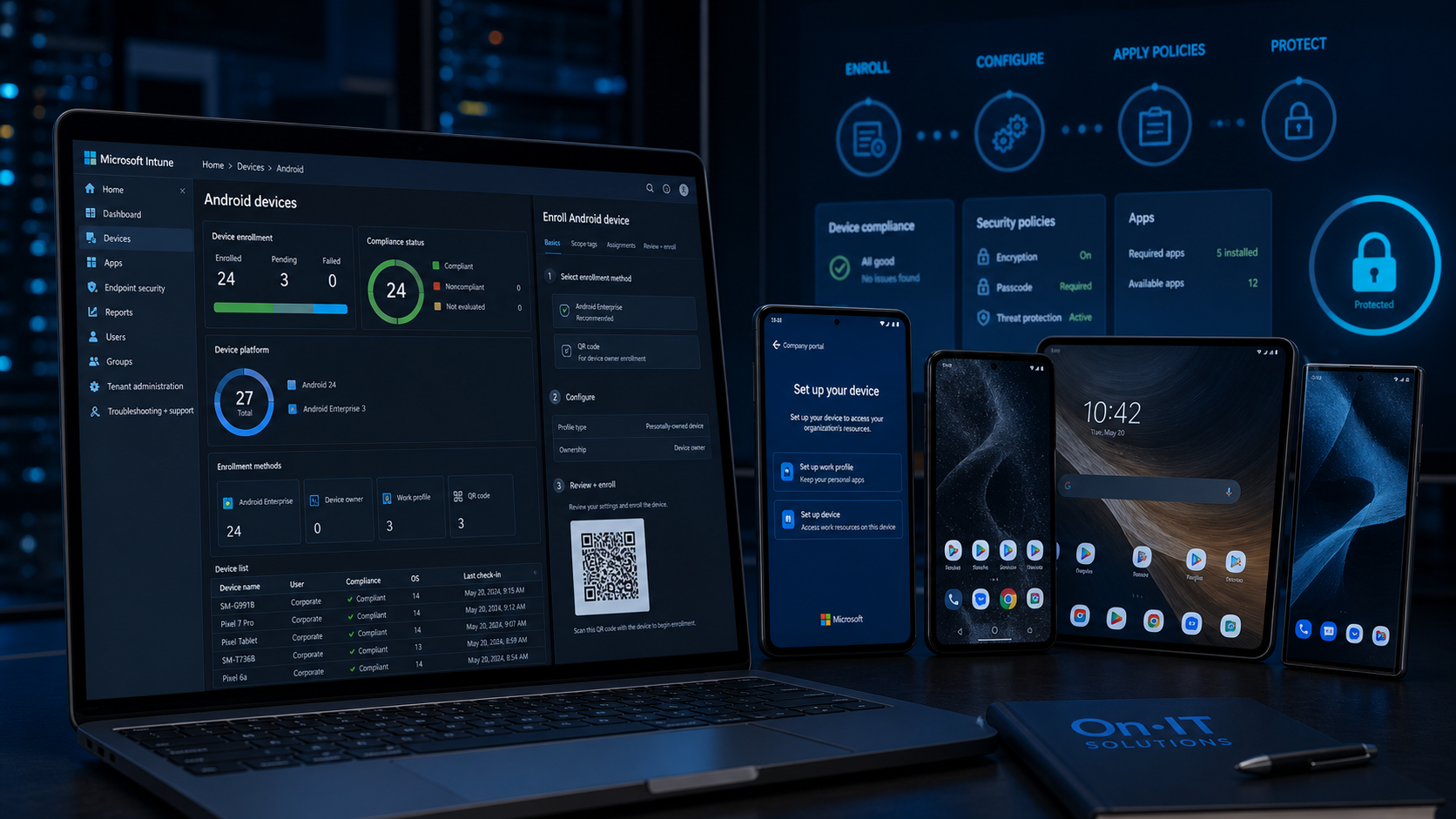
Mobile devices are no longer just tools for communication; they are portable offices that hold sensitive company data, from internal emails to customer contact lists. For Australian businesses, securing these endpoints is a critical component of the Australian Cyber Security Centre (ACSC) Essential Eight framework, which recommends restricted administrative privileges and controlled application environments. When you decide to enrol Android devices in Microsoft Intune, you are taking a significant step towards automating security and simplifying software distribution across your entire workforce.
Establishing the MDM Authority
Before any hardware can be registered, the Microsoft Intune admin center must be designated as the "boss" of your mobile fleet. This is known as setting the Mobile Device Management (MDM) authority. While many modern Microsoft 365 tenants have this pre-configured, verifying this setting ensures that Intune has the necessary permissions to push security policies, manage updates, and remotely wipe data if a device is lost or stolen. Establishing this authority is a one-time task that builds the infrastructure required for comprehensive Intune device management.
Linking Your Managed Google Play Account
A cornerstone of successful Android Enterprise enrollment is the connection between Microsoft and Google. To deliver apps seamlessly to your fleet, you must link your Intune tenant to a managed Google Play account. This link acts as a secure bridge, allowing your business to curate a private version of the Play Store. Through this portal, you can approve specific business apps and ensure that employees only have access to tools that meet your cybersecurity standards.
To complete this connection, you will typically navigate to the "Android enrollment" section within the Intune dashboard and follow the prompts to sign in with a Google account. It is highly recommended that this Google account is dedicated solely to your business's IT management and is not tied to a personal Gmail address.
Data Isolation for Australian SMBs
For many Australian small-to-medium businesses, the primary goal of MDM is to ensure that corporate data remains isolated from personal usage. By utilizing corporate-owned dedicated devices, you can lock hardware into a specific "Kiosk mode" or create a managed work profile. This separation ensures that even if an employee uses their phone for personal browsing, the business-critical applications remain in a secure, encrypted container that is monitored by your managed IT team. This level of control is vital for maintaining privacy and meeting local data protection expectations while providing a smooth user experience for your staff.
Preparing these backend settings correctly ensures that when you physically pick up a device to start the setup process, the transition from a blank screen to a fully managed tool is as smooth as possible.
Configuring Your Intune Tenant for Managed Device Enrollment
Managing hardware across multiple Australian work sites often feels like a logistical puzzle, but centralising your control simplifies the entire process. To effectively enrol Android devices in Microsoft Intune, you need to build a specific digital doorway for those devices to enter your network. This is achieved through enrollment profiles, which act as the blueprint for how your hardware will behave from the moment it is powered on. By setting up these profiles in advance, you ensure that every device added to your fleet adheres to your company's specific security and functional requirements.
Navigating the Intune Admin Center
The first step in your Android Enterprise enrollment journey takes place within the Microsoft Intune admin center. This cloud-based portal is where you will define the rules for your devices before they are even unboxed. To begin, sign in with your administrative credentials and follow these steps to locate the correct settings:
- In the left-hand navigation menu, select
Devices. - Under the "Device onboarding" heading, click on
Enrollment. - Select the
Androidtab from the top options to filter for Google-specific management tools. - In the list of enrollment options, locate and select Corporate-owned dedicated devices.
This specific path is designed for hardware that will be used for single-purpose tasks or shared among multiple staff members. Whether you are deploying point-of-sale tablets or ruggedised logistics tools, this method provides the highest level of Intune device management control available for your managed IT environment.
Warehouse_Scanners_VIC_2024. This makes it significantly easier to manage filters and troubleshooting logs when your fleet grows beyond a few dozen devices.Creating a Dedicated Enrollment Profile
Once you have selected the "Create profile" button, you will be prompted to enter the "Basics" for your new configuration. While it may be tempting to skip the description field, providing context here is vital for long-term administration. Clearly naming your profile (e.g., "Sales Tablets" or "Front of House Kiosks") allows your team to distinguish between different hardware use cases at a glance.
During this setup phase, you must also select a "Token type." This setting determines how the hardware will authenticate with your managed Google Play account and your Intune tenant. For corporate-owned dedicated devices, you will typically choose a standard token that allows for easy deployment across multiple handsets. This process effectively links the physical hardware to your digital policies, ensuring that your cybersecurity protocols are enforced the moment the device connects to the internet.
Finalising the Profile and Token Generation
After reviewing your settings and clicking "Create," Intune will generate a unique enrollment token. This token is provided in two formats: a long alphanumeric string and a scanable QR code. This QR code is the "key" you will use during the physical setup of the Android device to bypass standard consumer setup screens. Having this profile ready in the dashboard ensures that when your hardware arrives, the transition from a blank screen to a fully functional business tool is seamless and secure. This preparation is what allows your business to scale its mobile workforce without manual, one-by-one configuration headaches.
Creating an Enrollment Profile and Accessing Tokens
Think of your enrollment profile as a digital identity card that tells each new tablet or handheld scanner exactly how to behave from the moment it powers on. When you begin to enrol Android devices in Microsoft Intune, the configuration profile you build acts as the primary set of instructions for the device's initial setup. This is particularly useful for corporate-owned dedicated devices like warehouse scanners or point-of-sale tablets that are designed for single-purpose use rather than general employee productivity.
Selecting the Right Token Type for Intune Device Management
During the profile creation process, one of the most important decisions you will make is selecting the "Token type." This setting dictates how the hardware will authenticate with your network during its first boot-up. Because these devices are often shared across shifts or used for specific tasks, this token allows the hardware to join your business environment without requiring an individual user's personal credentials. This makes Intune device management significantly more scalable for businesses with large fleets of mobile hardware.
Assigning Profiles to Device Groups
A common mistake during Android Enterprise enrollment is assigning the profile to a user group. To ensure your security policies and apps apply correctly to the hardware itself, you must assign the profile to a "Device group." By targeting the hardware rather than the person, you ensure that the device remains compliant and secure regardless of which staff member is using it. This is a key pillar of robust cloud solutions for mobile workforces, as it keeps management consistent across the entire organisation.
How to Retrieve and Export Your Enrollment Token
Once you have finished the "Review + Create" process, your profile is ready, but you still need the physical "key" to start the setup. To access the enrollment token or QR code, follow these steps in the admin center:
- Navigate to
Devicesand selectEnrollmentunder the Android tab. - Choose Corporate-owned dedicated devices from the list of enrollment profiles.
- Click on the specific name of the profile you just created.
- Select the
Tokenoption from the left-hand navigation menu. - You will now see the 20-character enrollment string and a scannable QR code.
You can print this QR code or save it as a PDF for your IT team to use during the unboxing process. Remember to monitor the "Active" or "Inactive" status of your profiles regularly; if a profile seems to have vanished, check your filters to see if the token has simply reached its expiry date. Having this token ready is the final piece of the puzzle before you physically pick up a device to begin the hands-on configuration process.
How to Enrol Android Devices in Microsoft Intune Using the afw#setup Method
Imagine you have just unboxed a fleet of new tablets for your delivery team and need to get them secured and ready for work without spending hours on manual configuration. To enrol Android devices in Microsoft Intune using this streamlined approach, you can bypass the standard consumer setup process by using a hidden shortcut. This method ensures the hardware is locked down from the moment it connects to the internet, providing the robust Intune device management that modern businesses require.
Triggering the Android Enterprise Enrollment Workflow
The afw#setup method is designed specifically for corporate-owned dedicated devices that need to be managed as a single-purpose tool or a shared asset. By using this code, you are effectively telling the device to skip the personal Google account sign-in and instead look for your organization's management instructions. This is a standard part of a professional Android Enterprise enrollment strategy, ensuring that the device remains a business tool rather than a personal one.
Step-by-Step Enrollment Guide
- Power on the device: Start with a brand-new device or one that has been factory reset. You should be looking at the initial "Welcome" or "Hi there" screen.
- Connect to Wi-Fi: Follow the on-screen prompts to connect to your office or home wireless network. This is necessary for the device to communicate with Microsoft and Google servers.
- Enter the magic code: When you reach the screen asking for a Google account (where you would normally enter an email address or phone number), type
afw#setupand tap Next. - Install the management bridge: The device will recognize the code and prompt you to install the Android Device Policy app. This app acts as the secure link between the hardware and your Intune environment.
- Accept the terms: Review and accept the terms of service from Google to proceed with the device management setup.
- Scan your QR code: At this stage, the device camera will open automatically. Use it to scan the unique QR code you generated earlier in the Intune admin center to link the phone to your business.
Finalising the Connection
Once the QR code is scanned, the device will pull down the configurations associated with your managed Google Play account. This includes any mandatory applications, security restrictions, and Wi-Fi profiles you have pre-configured. This automated handshake ensures that your cybersecurity policies are applied immediately, reducing the risk of human error during the setup phase.
For many managed IT environments in Australia, this method is the preferred way to deploy "COSU" (Corporate-Owned Single-Use) devices, such as point-of-sale terminals or inventory scanners. It creates a clean, professional interface for the end-user while giving the IT team full visibility over the device's health and security status. After the final configuration screens disappear, the device is officially ready for use in the field.
Managing Dedicated Devices and Security Compliance
Once your hardware is successfully registered, the real value of a mobile management strategy lies in how you control and protect those assets on a daily basis. For many Australian businesses, the goal isn't just to get the device online, but to ensure it remains a secure, single-purpose tool that never becomes a liability. When you enrol Android devices in Microsoft Intune, you gain a centralised command centre to enforce these standards across your entire fleet.
Organising Access with Scope Tags
As your business grows, you may not want every IT administrator to have the same level of access to every piece of hardware. This is where "Scope tags" become essential for effective Intune device management. By assigning specific tags during or after the enrollment process, you can limit who can see or manage certain devices based on their role or location.
For example, you could create a "Melbourne-Warehouse" tag so that your local Victorian site lead can only manage the scanners at their specific facility. This role-based approach keeps your administrative environment clean and prevents accidental configuration changes from impacting the wrong department. It is a best practice that aligns perfectly with cybersecurity principles regarding the restriction of administrative privileges.
Optimising Corporate-Owned Dedicated Devices
Many corporate-owned dedicated devices are intended for a single task, such as a point-of-sale terminal, a check-in kiosk, or a delivery driver's navigation tool. To prevent these devices from being used for personal browsing or social media, you can lock them into "Kiosk mode" via the Intune dashboard. This ensures the device only displays the specific line-of-business apps you have approved through your managed Google Play account.
This level of control significantly reduces data usage costs and keeps employees focused on their tasks. Because the user interface is restricted, there is also a much lower risk of a staff member accidentally clicking a malicious link or changing a critical system setting that would require an on-site technician to fix.
Automating Updates and Maintaining Audit Readiness
Maintaining a high security posture for Android Enterprise enrollment requires keeping software current. By configuring "Update rings" within Intune, you can automate how and when system updates are applied. For Australian SMBs, this means you can schedule heavy system updates to occur at 2:00 AM AEST, ensuring your team isn't interrupted by a 1GB download in the middle of a busy shift.
Finally, keeping your enrollment list clean is vital for passing annual security audits. Regularly removing inactive or retired devices ensures your licensing costs stay accurate and your reporting remains clear. Most importantly, having a well-managed list ensures that if a device is ever reported lost or stolen, your managed IT team can trigger a remote wipe immediately, erasing all sensitive business data before it can be accessed by unauthorised parties.
By staying on top of these post-enrollment tasks, you ensure your mobile fleet remains a productive and secure extension of your digital office.
Frequently Asked Questions
What is the afw#setup code used for in Android enrollment?
The afw#setup code is entered into the Google login field on a new or factory-reset device to bypass personal setup and initiate the Android Enterprise management process. This allows the device to download the necessary Microsoft Intune management tools automatically.
Can I enrol an Android device in Intune without a factory reset?
For 'Corporate-owned dedicated devices' or 'Fully Managed' modes, a factory reset is required to establish the management profile at the root level. If you wish to manage a device without resetting it, you must use the 'Personally-owned with a work profile' method via the Company Portal app.
What happens when an Intune enrollment token expires?
Once an enrollment token expires, you cannot use that specific QR code or string to set up new devices. You will need to navigate back to the Enrollment Profile in the Intune admin center to generate a new token or extend the existing one.
Sources
- https://learn.microsoft.com/en-us/intune/device-enrollment/android/setup-dedicated
- https://learn.microsoft.com/en-us/intune/user-help/enrollment/enroll-intune-app-android
- https://learn.microsoft.com/en-us/intune/device-enrollment/android/guide
- https://uit.stanford.edu/service/mobiledevice/management/enroll_android_intune
- https://tech.rochester.edu/wp-content/uploads/Enroll-Your-Android-Device-in-Intune.pdf
- https://learn.microsoft.com/en-us/intune/user-help/enrollment/enroll-company-portal-android
Need Expert IT Help?
Still stuck, or want this handled professionally? Our technicians provide fast remote and on-site IT support across Australia. Whether it's a one-off issue or ongoing support for your whole team, we've got you covered. Get in touch with OnIT Solutions today.