Identify Which Apps are Draining Your Phone Battery
Nothing kills productivity faster than seeing your smartphone's power levels plummet during a busy morning of client calls or site visits. Before you can take action to stop apps draining phone battery, you need to play detective and figure out exactly where that energy is going. Most modern smartphones keep a detailed log of every milliampere used, allowing you to pinpoint the exact moment your device started losing juice.
Navigating Your Android Battery Settings
Finding the power-hungry culprits begins in your phone’s main menu. While every manufacturer tweaks the interface slightly, the core android battery settings are usually located in a similar spot. To get a clear picture of your power consumption, follow these steps to access the hidden data within your device:
- Open the
Settingsapp on your device. - Scroll down and tap on
BatteryorBattery and Device Care. - Look for a menu option labeled
Battery UsageorUsage Details. - Review the list of apps, which are typically ranked from highest to lowest percentage of total power consumed since your last charge.
Analysing Usage Details to Extend Mobile Battery Life
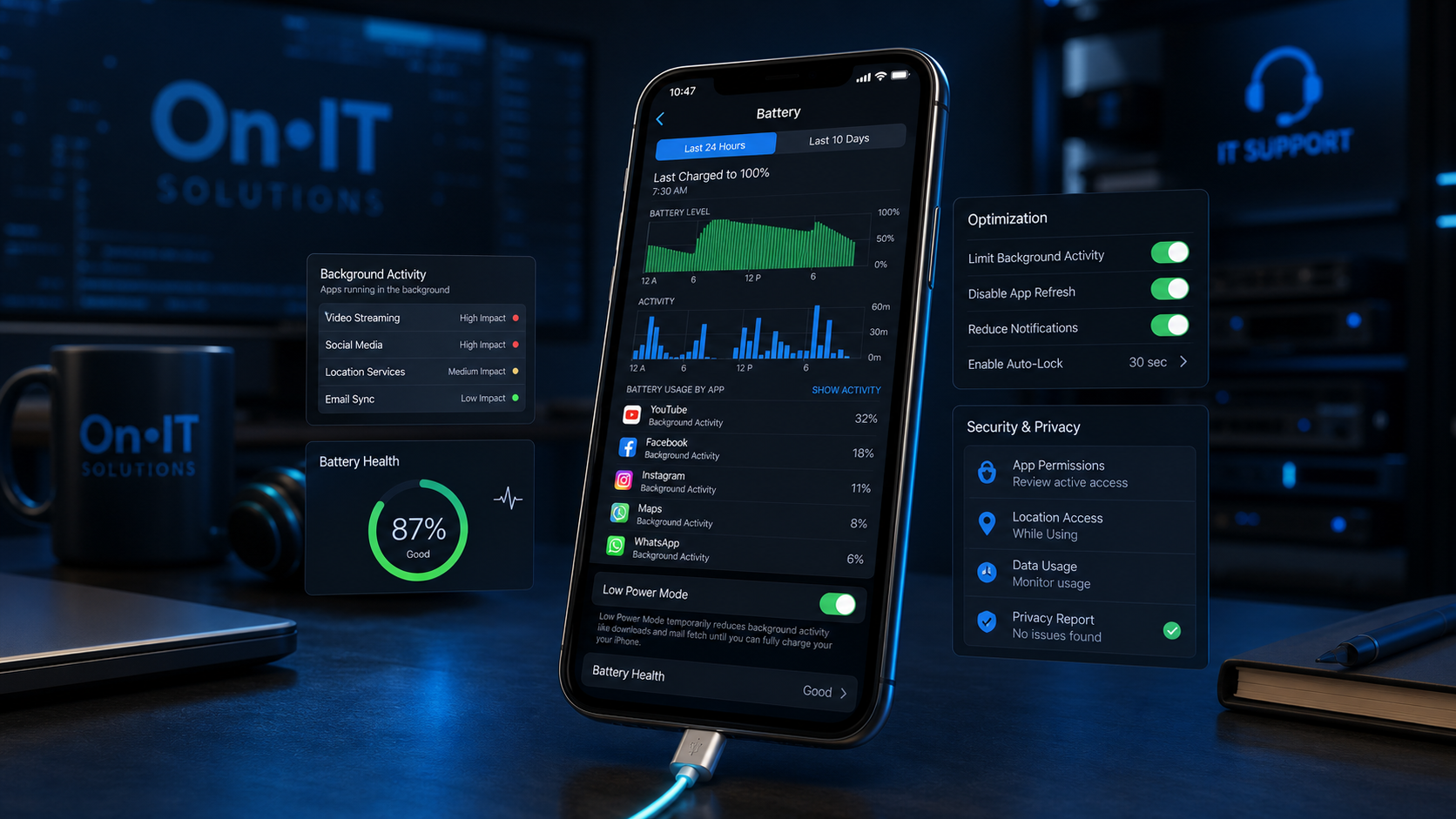
Once you are in the usage screen, you will see a graph showing your battery level over time. Pay close attention to any sharp, downward slopes — these are the "life-saving drops" in percentage that indicate a specific application has been working overtime. By clicking on an individual app in this list, you can see how much time it spent active on your screen versus how much it was consuming resources in real-time while running in the background.
To effectively reduce battery usage, you must identify apps that have high "Background" time. If a simple utility app or a game you haven't played all day is using 10% of your battery while you aren't even using it, that is a clear sign of a resource leak or a background process that has gone rogue. Beyond the simple percentage, look for the "Time Active" versus "Time in Background" metrics. If an app like Microsoft Outlook shows 5 minutes of active use but 6 hours of background activity, it is likely aggressively fetching data and fetching notifications at the cost of your longevity.
Spotting High-Drain Apps in the Australian Workplace
For many Australian professionals, common work tools like Microsoft Teams, Outlook, or LinkedIn are often the primary drivers of background drain. This is particularly common when travelling between job sites or working in regional areas; when your phone struggles to find a 4G or 5G signal, these apps work twice as hard to maintain a connection, which can significantly extend mobile battery life if managed correctly.
For businesses using managed IT services, keeping these critical communication apps in check is essential for ensuring staff remain reachable throughout the entire workday. Monitoring these percentages regularly will help you spot problematic updates or misconfigured sync settings before they leave you stranded without a charge during a critical client meeting. Knowing exactly which apps are at fault is the necessary first step before you begin restricting their permissions or halting their background activity entirely.
Manage Background Apps to Reduce Battery Usage
Many people think that swiping an app away from the recent apps screen is enough to cut off its power supply, but that isn't always the case. Some applications are designed to linger in your system memory, silently performing tasks like location tracking or data syncing even when you aren't actively using them. To effectively stop apps draining phone battery, you need to go beyond the basics and take direct control of your device's active processes through the deeper system menus. This ensures your phone stays powered through your full shift, from the first morning coffee to the final email of the day.
Finding Your Resource Culprits in Android Battery Settings
Once you have identified which apps are the heaviest hitters from your battery report, your next stop is the main applications manager. This area of your android battery settings allows you to manage each app individually rather than applying broad, phone-wide changes. Navigating here gives you the surgical precision needed to target only the apps that are actually causing problems for your device's longevity.
- Open the
Settingsapp on your smartphone. - Scroll down and select
Apps,Applications, orApp Management. - Browse the list or use the search icon to find the specific app you identified as a high-drain culprit.
- Tap on the app name to open its
App Infoscreen, where you will see options for notifications, permissions, and battery usage.
How to Use Force Stop to Reduce Battery Usage
On the App Info page, you will notice a prominent button labeled Force Stop. It is important to understand that this is much more powerful than simply closing an app from your home screen. When you swipe an app away, it often remains in a "cached" state, ready to spring back to life the moment a notification arrives or a background sync is triggered. By selecting Force Stop, you are manually killing the process and telling the operating system to prevent it from running until you specifically tap its icon again.
This is a highly effective way to reduce battery usage when a specific tool, like a social media app or a resource-heavy map, refuses to go to sleep. Using this function doesn't delete your data or log you out of the account; it simply puts the app into a complete "cold storage" state. This prevents the app from "ticking away" in the background and drawing small but constant amounts of current from your battery.
Building a Habit to Extend Mobile Battery Life
For the modern Australian professional, a smartphone is more than a communication device; it is a vital workstation. We encourage employees to perform a quick "app audit" at least once a week to ensure that unused or forgotten tools aren't running in the background. If you downloaded a specific app for a one-off conference or a temporary project, it may still be consuming resources months later. Deleting these or using the Force Stop method on them is the easiest way to extend mobile battery life without changing how you use your essential work tools.
For companies utilising managed IT services, keeping your device fleet lean and efficient is a core part of maintaining productivity. When your team isn't constantly tethered to a wall charger, they can focus more on their tasks and less on their remaining percentage. Maintaining a clean app list is a simple but powerful security and performance habit that benefits both the individual user and the wider business operations. Taking these manual steps provides immediate relief to your hardware, but it is equally important to know which parts of your phone's system you should leave untouched.
Protecting Critical Android Battery Settings and Services
When you’re on a mission to claw back every minute of power, it’s tempting to hit ‘Force Stop’ on every single item in your app list. While your goal is to stop apps draining phone battery levels, being too aggressive can actually lead to system instability or missed business communications. Not every process running in the background is a "villain" stealing your charge; many are the invisible engines that keep your smartphone's basic features operational.
Recognising Core Android Battery Settings and System Services
As you navigate through your android battery settings, you will likely encounter names like "Google Play Services," "Android System," or "System UI." It is vital that you do not interfere with these specific entries. Unlike a social media app or a mobile game, these services manage everything from your touchscreen responsiveness to the way your phone connects to the office Wi-Fi network.
Force-stopping these core components to reduce battery usage often backfires. When a critical system service is killed, the Android operating system will immediately try to relaunch it to maintain stability. This "stop-and-restart" loop consumes significantly more power than if you had simply left the service running quietly in the background, effectively defeating the purpose of your optimisation efforts.
Distinguishing Between Third-Party Apps and System Tools
To safely extend mobile battery life, you need to be able to tell the difference between a tool you downloaded and a service your phone needs to survive. A simple rule of thumb for Australian staff is to look at the app icon and the source. If the app is something you downloaded from the Play Store—like a QR code scanner, a calculator, or a news app—it is generally safe to restrict. If the app has no "Uninstall" option and only a "Disable" or "Force Stop" button, it is likely a core component of the device.
- Third-Party Apps: These are safe to stop. Examples include Facebook, eBay, or specific airline apps that you only use occasionally.
- System Services: These manage background app refresh for your entire device. Google Play Services, for instance, is the backbone that allows your work apps to send you real-time notifications.
- Manufacturer Bloatware: Some phones come with pre-installed apps from the manufacturer. While these can often be disabled safely, proceed with caution if you aren't sure what they do.
Security Implications for Australian Businesses
For organisations following cybersecurity best practices, maintaining the integrity of system services is a matter of safety, not just battery life. The Australian Cyber Security Centre (ACSC) emphasises the importance of timely patching and updates. Many of the background processes you see in your battery list are responsible for silently checking for and applying these essential security patches.
By interfering with these services to save a few percentage points of power, you may inadvertently bypass the mechanisms that protect your business data from emerging threats. Keeping your core services active ensures that your device remains a secure tool for accessing cloud solutions and sensitive company information. Striking the right balance between power management and system health is the key to a reliable mobile workstation.
Once you have secured your core system services, you can turn your attention to the broader environmental settings that influence how much energy your hardware consumes throughout the day.
Practical Strategies to Extend Mobile Battery Life
You are halfway through a site visit or a client meeting when that dreaded 15% warning flashes on your screen, just as you need to pull up an important document. Most modern smartphones come equipped with built-in tools to stop apps draining phone battery by prioritising essential tasks over power-hungry background processes. By activating these features before you leave the office, you can ensure your device remains a reliable tool rather than a paperweight by mid-afternoon.
Activating Power Saving to Reduce Battery Usage
Power saving modes are your device's first line of defence against a premature shutdown. These settings work by intelligently throttling the processor speed, decreasing screen brightness, and restricting background app refresh for services that aren't critical to the phone's immediate operation. To make this hands-free, you can configure your android battery settings to trigger this mode automatically whenever your charge hits a specific threshold, such as 20% or 30%.
The Role of Software Updates in Mobile Efficiency
It might seem like a minor chore to hit "Update All" in the Google Play Store, but these updates often contain critical performance patches that extend mobile battery life. Developers frequently discover "memory leaks"—errors where an app continues to demand system resources even after it is closed—and release updates to fix them. Keeping your business apps updated ensures they are running as efficiently as possible, which is a core component of maintaining healthy device performance across your team.
Disabling Non-Essential Background Activity
Many applications feel the need to be "always on," constantly checking for updates or location changes even when you haven't opened them in days. You can manually take control of this by navigating to your app settings and toggling off background permissions for non-essential tools. This keeps your battery focused on your primary workplace applications, like Microsoft Teams or Outlook, while silencing the energy demands of social media or news apps that don't need to be active while you work.
Quick Hardware Tweaks to Support App Management
While managing software is vital, how you configure your hardware can significantly reduce battery usage throughout the workday. Simple adjustments to your display and connectivity can provide the extra hour of life you need to finish your shift. Use the following steps to further optimise your device:
- Lower Screen Brightness: Use "Adaptive Brightness" so the phone only uses the power it needs for your current environment.
- Shorten Screen Timeout: Set your screen to turn off after 30 seconds of inactivity to prevent the display from wasting energy while sitting on your desk.
- Toggle Connections: If you are in a remote area with no reception, turn on "Flight Mode" to stop the phone from aggressively searching for a signal, which is one of the fastest ways to drain a battery.
Regularly applying these strategies helps maintain your hardware's longevity and ensures your staff can stay connected without the constant "low battery" anxiety. Establishing these personal habits is a great start, but for Australian businesses with dozens of handsets, a more coordinated approach is often required to keep everything running smoothly.
Optimising Fleet Devices for Better Workplace Performance
Imagine a field technician in regional Queensland losing GPS and client contact details mid-job simply because their handset couldn't survive a standard eight-hour shift. For many Australian businesses, mobile devices are the primary tools for communication and data entry, meaning a dead battery results in immediate downtime and lost revenue. Learning how to stop apps draining phone battery across an entire fleet is not just a technical fix; it is a critical strategy for maintaining workforce productivity and ensuring staff safety in remote areas.
Implementing a "Clean Device" Policy to Reduce Battery Usage
One of the most effective ways to extend mobile battery life across company handsets is to implement a strict "clean device" policy. Many employees inadvertently install resource-heavy personal apps that run constant background app refresh cycles, fetching data even when the phone is sitting in a pocket or a vehicle dock. By standardising the applications allowed on work-issued hardware, you remove the "digital clutter" that contributes to rapid power depletion.
A proactive clean device policy should include the following actions:
- Regularly auditing handsets to remove non-essential third-party software that is not required for daily tasks.
- Educating staff on how android battery settings can be adjusted to restrict non-critical notifications.
- Providing a list of "approved" apps that are known for efficiency and low resource consumption.
- Encouraging employees to use web-based versions of tools rather than standalone apps when a permanent data connection is available.
Partnering with an MSP for Centralised Configuration
Managing the power settings of fifty different handsets individually is an impossible task for a busy business owner. By consulting with a provider of managed IT services, you can push specific battery-saving configurations to every company-owned device simultaneously. This ensure that every employee starts their day with a device tuned for performance, with background app refresh restricted and power-saving modes scheduled to trigger automatically at 30% battery.
Centralised management also allows your IT team to monitor the "health" of the fleet. If a specific batch of phones shows a consistent trend of failing before the end of the day, your MSP can investigate if a recent software update or a specific corporate app is the culprit. This data-driven approach allows you to reduce battery usage systematically rather than relying on individual employees to remember to close their tabs or dim their screens.
Proactive Management and E-Waste Reduction
Looking toward the future, managing your fleet's power consumption does more than just keep your team connected; it significantly extends mobile battery life over the long term. Lithium-ion batteries have a finite number of charge cycles, and the more often a phone is drained to zero and recharged, the faster the hardware degrades. By keeping consumption low, you reduce the frequency of premature battery replacements and slow the accumulation of corporate e-waste.
When devices are optimised to run lean, they stay cooler, perform faster, and remain in service for three to four years rather than needing replacement after eighteen months. This sustainable approach keeps your Australian team online, reduces capital expenditure on new hardware, and ensures that your mobile fleet remains a reliable asset rather than a constant source of frustration. Maintaining a healthy fleet is about more than just convenience; it’s about building a resilient, connected workforce ready for anything.
Frequently Asked Questions
How do I see which apps are using the most battery on my phone?
Open your phone's 'Settings' app and tap on 'Battery' or 'Battery & Device Care'. From there, tap on 'Battery Usage' to see a list of apps ranked by the percentage of power they have consumed since the last full charge.
Is it safe to force stop any app on my Android phone?
It is safe to force stop third-party apps like social media or games, but you should avoid stopping system processes containing 'Android' or 'Google' in the name. Force stopping essential services like Google Play Services can cause your phone to malfunction or miss important notifications.
Does disabling background activity stop me from getting notifications?
Yes, if you disable background activity for a specific app, it may not be able to check for new messages or updates until you manually open it. For critical work apps like Teams or Slack, it is usually better to leave background activity enabled and manage battery via other settings.
Why does my battery drain faster even when I'm not using my phone?
This is usually caused by 'background drain,' where apps continue to sync data, track your location, or check for updates while the screen is off. Checking your battery settings will help you identify which apps are staying active and allow you to force stop them or restrict their background usage.
Sources
- https://www.energysistem.com/en/blogs/events/how-to-stop-battery-consuming-applications-on-your-smartphone?srsltid=AfmBOorV57KuljAnEEf2pv73uCWwAjU0HVNHHpCWQV-4e_I2jYRrzJKS
- https://www.energysistem.com/en/blogs/events/how-to-stop-battery-consuming-applications-on-your-smartphone?srsltid=AfmBOoreEColcFQbwBOOWtAzOMny-MK2g00QN2zoNOsoyGe7SQR6QC6s
- https://www.androidpolice.com/how-to-find-apps-draining-phone-battery/
- https://www.android.com/articles/how-to-save-battery-android/
- https://trickedoutonline.com/background-apps-battery/
- https://www.zdnet.com/article/how-to-find-out-what-apps-are-draining-your-android-battery/
Need Expert IT Help?
Still stuck, or want this handled professionally? Our technicians provide fast remote and on-site IT support across Australia. Whether it's a one-off issue or ongoing support for your whole team, we've got you covered. Get in touch with OnIT Solutions today.