Protecting Your Data with Small Business Cloud Backup
Imagine arriving at the office on a Monday morning only to find your main server won't boot, or a staff member has accidentally clicked a malicious link that encrypted your entire client database. For many Australian small businesses, losing even a single day of work due to hardware failure or a cyber incident isn't just a headache—it can cost thousands of dollars in lost productivity and damage your hard-earned reputation. Implementing a robust small business cloud backup strategy ensures that your operations remain resilient, no matter what technical glitches or security threats come your way.
Implementing the 3-2-1 Backup Rule
To truly protect your digital assets, you should follow the gold standard of data protection known as the 3-2-1 backup rule. This simple yet effective framework ensures that your information is never dependent on a single device or location. By diversifying where your files live, you create a safety net that survives everything from a spilled coffee on a laptop to a catastrophic office fire or theft.
Follow these steps to align your business with the 3-2-1 rule:
- Keep 3 copies of your data: This includes your original working files and at least two additional backup copies.
- Use 2 different storage types: For example, keep one copy on your local computer or a Network Attached Storage (NAS) device and another in a separate environment.
- Hold 1 copy securely off-site: This is where the cloud becomes your most valuable asset, keeping data away from your physical office location.
The Power of Off-Site Data Storage
Historically, maintaining an off-site data storage solution involved someone physically carrying a tape drive or an external hard drive home every evening—a process prone to loss, damage, and inconsistency. Modern automatic data backup solutions have replaced this manual chore with seamless, encrypted transfers directly to the cloud. This means your data is transmitted to a secure data centre in real-time or on a set schedule, fulfilling the requirements of your disaster recovery plan without any manual effort from your team.
By moving your secondary copy to the cloud, you eliminate the risk of a single-site disaster—like a flood or fire—wiping out both your primary machines and your local backups. When integrated with your broader cybersecurity strategy, cloud backups act as a final line of defence against ransomware. If your local files are compromised, you can simply "roll back" to a version saved before the attack occurred, bypassing the hackers entirely.
Investing in these tools isn't just about technical safety; it's about peace of mind for you and your employees. When you know your work is being replicated to a secure environment every hour, you can focus on growing your business rather than worrying about the technical "what-ifs." Finding the right tool for your specific needs is the next logical step in securing your digital future.
Choosing the Right Automatic Data Backup Provider
With dozens of vendors promising ultimate protection, selecting the right platform often feels like the most daunting hurdle in securing your digital assets. For most busy managers, the ideal small business cloud backup is one that stays out of sight, quietly syncing files without requiring a degree in computer science. The goal is to move away from manual checklists and toward an automatic data backup system that works while you sleep, ensuring your files are safe in off-site data storage every single hour.
Carbonite: Simplicity for Non-Technical Teams
For businesses that don't have a dedicated IT department, Carbonite stands out as a top-tier choice due to its "one-click" setup. Once installed, the platform provides a user-friendly dashboard that gives you a clear green light when your data is protected. It removes the risk of human error by performing updates automatically, allowing your team to focus on serving customers rather than checking backup logs. You can easily customise which folders are prioritised directly from the dashboard, making it a very approachable entry point for smaller teams.
CrashPlan: Robust Security Across Multiple Platforms
If your office uses a mix of Windows PCs, MacBooks, and perhaps even a Linux-based server, CrashPlan offers the versatility required for a diverse tech stack. It employs industry-standard 256-bit AES encryption, which essentially scrambles your data before it even leaves your office, keeping it private from cybercriminals. This level of protection is a cornerstone of a reliable disaster recovery plan, especially for businesses handling sensitive client information. CrashPlan’s continuous backup feature runs in the background, replicating files at regular intervals so you never lose more than a few minutes of work.
Microsoft Azure: Scalable Solutions for Windows Environments
Australian businesses already heavily invested in the Microsoft ecosystem or those running cloud solutions may find Microsoft Azure Backup to be the most logical fit. It operates on a pay-as-you-go model, meaning you only pay for the exact amount of storage you use as your business grows. Because it integrates directly with standard Windows Server environments, your transition to the cloud can often be handled using the management tools your team is already familiar with. This seamless integration allows for efficient backup of system files, user data, and application-specific information without the need for bulky third-party software.
Finding the right provider is only the first half of the journey; the way you configure these tools determines how quickly you can bounce back from an incident. Once you have selected a platform that fits your budget and technical needs, the next step is to fine-tune your settings for maximum reliability.
Configuring Your Cloud Backup for Maximum Reliability
Losing an afternoon's worth of work because a laptop froze before you could hit "Save" is a frustration most of us have experienced. By fine-tuning your small business cloud backup settings, you can ensure that every change made to a document is captured instantly, rather than waiting for an overnight sync. This proactive approach transforms your backup from a simple safety net into a seamless part of your daily workflow that protects productivity in real-time.
Real-Time Protection via Automatic Data Backup
Continuous backup settings are the backbone of a modern automatic data backup strategy. Instead of waiting for a set time each night to run, these systems monitor your files and replicate changes to the cloud the moment they are saved. This means if a staff member’s computer fails at 3:00 PM, they can pick up right where they left off on a new machine without losing hours of progress. Most cloud agents run quietly in the background, consuming minimal system resources while they watch for changes in your most important folders.
Scheduling Full System Images for Your Disaster Recovery Plan
While continuous syncing protects individual files, a comprehensive disaster recovery plan also requires "image-level" backups. A system image is essentially a snapshot of your entire computer, including the operating system, registry settings, and installed software. If a hard drive fails completely, having a fortnightly full image allows you to restore the entire machine to its exact state without having to manually reinstall programs or reconfigure Windows settings. These images should be stored in your off-site data storage vault to ensure they are safe even if your physical office is inaccessible.
Expanding Your Backup Scope Across All Endpoints
A common mistake in many Australian offices is only backing up the main office server while neglecting individual staff devices. In today's hybrid work environment, critical data often lives on the laptops of remote employees or within a Network Attached Storage (NAS) device used for large media files. Your backup scope must be broad enough to encompass every device where work is performed to satisfy the 3-2-1 backup rule.
To ensure total coverage, your configuration should include:
- Staff Laptops: Ensure the backup agent is targeting key user paths like
C:\Users\[Username]\DocumentsandDesktop. - On-site Servers: Set up automated triggers to push server-side databases and application data to the cloud every evening.
- NAS Devices: Configure your storage drive to sync directly with your cloud provider to prevent a local hardware failure from causing total data loss.
Configuring these tools correctly is just as important as choosing the right provider. If you find the technical side of managing multiple endpoints and storage quotas overwhelming, our managed IT services can handle the heavy lifting for you. Expert oversight ensures that your protection remains active and that your cloud storage doesn't quietly run out of space just when you need it most. Maintaining this level of visibility is the only way to guarantee that your files are truly recoverable when a crisis hits.
Securing Microsoft 365 and Google Workspace Data
Many business owners mistakenly believe that moving to the cloud means their data is automatically protected forever, but the reality of "shared responsibility" means you are still in charge of your own files. While giants like Microsoft and Google ensure their platforms stay online, they do not provide a comprehensive small business cloud backup for your specific emails, spreadsheets, or client records. If a staff member accidentally purges a folder or a ransomware attack syncs encrypted files to your drive, those service providers often cannot recover that data once the "deleted items" window has closed.
Why Standard Cloud Suites Aren't Enough
Relying solely on the built-in "trash" or "recycle bin" of your productivity suite is a risky disaster recovery plan. These features are designed for short-term retrieval, not long-term archiving or protection against malicious intent. A disgruntled employee or a compromised account could permanently delete years of business intelligence in seconds. By implementing an automatic data backup solution that sits outside of your main workspace, you create an immutable record of your business history that remains untouched even if your primary account is hijacked.
Implementing Cloud-to-Cloud Backups
To bridge this security gap, many Australian firms turn to specialised tools like Acronis to perform cloud-to-cloud backups. This process ensures your Outlook emails, OneDrive files, and SharePoint sites are copied directly to a separate, independent off-site data storage location. Because this happens automatically in the background, your team can continue working in their preferred cloud solutions without having to manually export archives or manage physical drives.
Choosing an independent backup provider offers several key advantages for your daily operations:
- Platform Independence: Your backup is stored entirely away from your Microsoft or Google environment, preventing a single point of failure from wiping out both the original and the copy.
- Point-in-Time Versioning: You can restore a specific version of a document from three months ago, even if the current version has been corrupted or overwritten.
- Granular Recovery: Instead of restoring an entire mailbox or site, you can pick a single lost email or a specific folder to put back exactly where it belongs.
Aligning with ACSC Guidelines
The Australian Cyber Security Centre (ACSC) recommends that businesses maintain regular, tested backups of important data to remain resilient against cyber threats like ransomware. To meet these standards, ensure your cloud storage settings are configured to facilitate quick restoration during an incident. This includes keeping your backup data in an Australian-based data centre whenever possible to reduce latency and comply with local data privacy expectations. Having a clean, searchable archive of your workspace data is a core component of a modern cybersecurity posture, allowing you to get back to work in minutes rather than days.
Once your cloud data is safely archived and independent of your primary workspace, the final piece of the puzzle is ensuring you can actually use those files when an emergency strikes.
Testing Your Disaster Recovery Plan and Restoration
Many business owners breathe a sigh of relief once their backup software is installed, yet the true test of your resilience happens the moment you actually need to retrieve a lost file. Even the most sophisticated small business cloud backup system is only as good as its last successful restoration. If you haven't recently verified that your data is readable and intact, you are essentially flying blind during a digital emergency.
Validating Your Automatic Data Backup
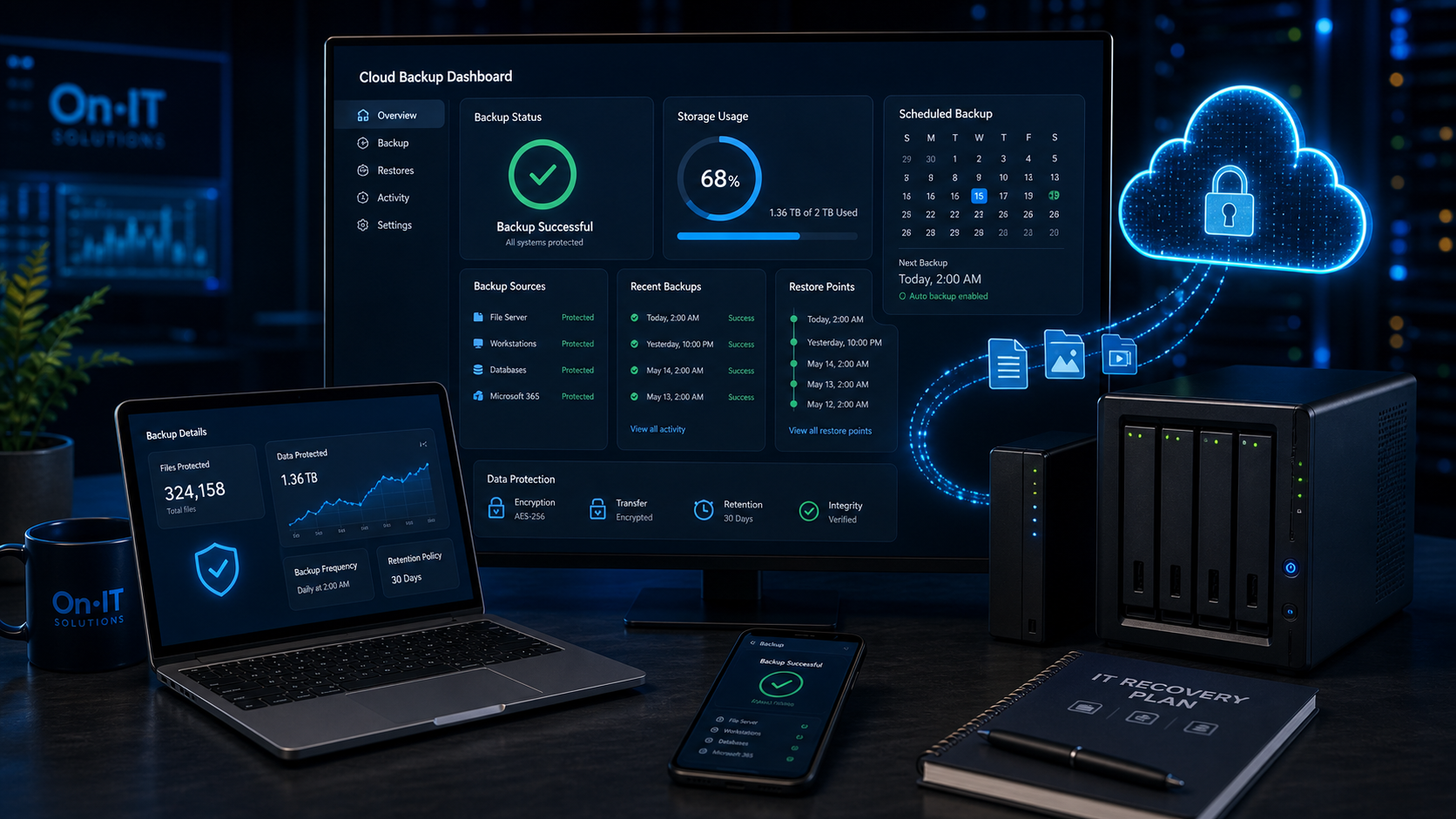
It is a common misconception that a "green light" on your backup dashboard guarantees your files are safe. Occasionally, files can become corrupted during the sync process, or certain folders might have been accidentally excluded from the automatic data backup scope. To prevent these surprises, pick a regular date—such as the first Monday of every month—to perform a manual "spot check" by restoring three or four random files to your desktop.
Creating a Plain-English Disaster Recovery Plan
When a server fails or a laptop is stolen, panic often sets in, making it difficult to remember technical steps. A robust disaster recovery plan should be a simple, one-page document written in plain English so that any team member can initiate a restore if the business owner is unavailable. This document should be stored both digitally and in a physical "grab bag" to ensure access even when the power is out or the network is down.
Your recovery guide should include:
- Step-by-step instructions on how to log into your off-site data storage portal.
- Contact details for your managed IT support team and internet service provider.
- A clear list of which systems must be restored first (e.g., your accounting software before your marketing archives).
- Location of local recovery keys or 2FA hardware tokens.
Setting Realistic Recovery Objectives
In the world of IT, we talk about the "Recovery Time Objective" (RTO), which is a fancy way of asking: "How long can we afford to be offline?" For most Australian small businesses, the goal should be to have a user back to work on a clean copy of their data within the same business day. Aligning your strategy with ACSC guidelines suggests that high-availability data should be prioritized to minimize the financial impact of downtime.
If your current restoration process involves downloading terabytes of data over a slow connection, you might find that your "one-day" goal is impossible. In these cases, your 3-2-1 backup rule strategy might need to include a local "speed" copy on a NAS drive for instant recovery, while the cloud remains your ultimate safety net for catastrophic events. Building this level of confidence in your data recovery process ensures that an IT failure is merely a minor inconvenience rather than a business-ending event.
Frequently Asked Questions
What is the 3-2-1 backup rule for small businesses?
The 3-2-1 rule is a gold-standard strategy where you keep three total copies of your data. Two copies are stored on different local media (like a computer and an external drive), and one copy is stored off-site, typically in a secure cloud environment.
Does cloud backup protect against ransomware?
Yes, provided the backup solution offers 'versioning' or 'immutable' copies. This allows you to restore a clean version of your files from a point in time before the ransomware infection occurred, effectively bypassing the attacker's demands.
How often should I run an automatic data backup?
For most small businesses, continuous backup is best for individual files, meaning they are backed up as soon as they are saved. For full system images or server backups, running these once a day or once a week is standard practice.
Why do I need to back up Microsoft 365 or Google Workspace?
While these providers keep their services running, they operate on a 'shared responsibility' model. They protect the infrastructure, but you are responsible for the data; if a user deletes a file or an inbox is compromised, those files may be permanently lost without a third-party backup.
Sources
- https://www.hycu.com/blog/top-8-small-business-backup-solutions-cloud-premises
- https://www.acronis.com/en/blog/posts/small-business-backup/
- https://www.acrisure.com/blog/data-backup-strategies-for-small-businesses
- https://www.veeam.com/blog/cloud-backup-services-for-smb.html
- https://www.experte.com/cloud-backup/small-business
- https://www.zmanda.com/blog/remote-backup-solutions-for-small-businesses/
Need Expert IT Help?
Still stuck, or want this handled professionally? Our technicians provide fast remote and on-site IT support across Australia. Whether it's a one-off issue or ongoing support for your whole team, we've got you covered. Get in touch with OnIT Solutions today.