Protecting Your Assets with Automatic Cloud Backup
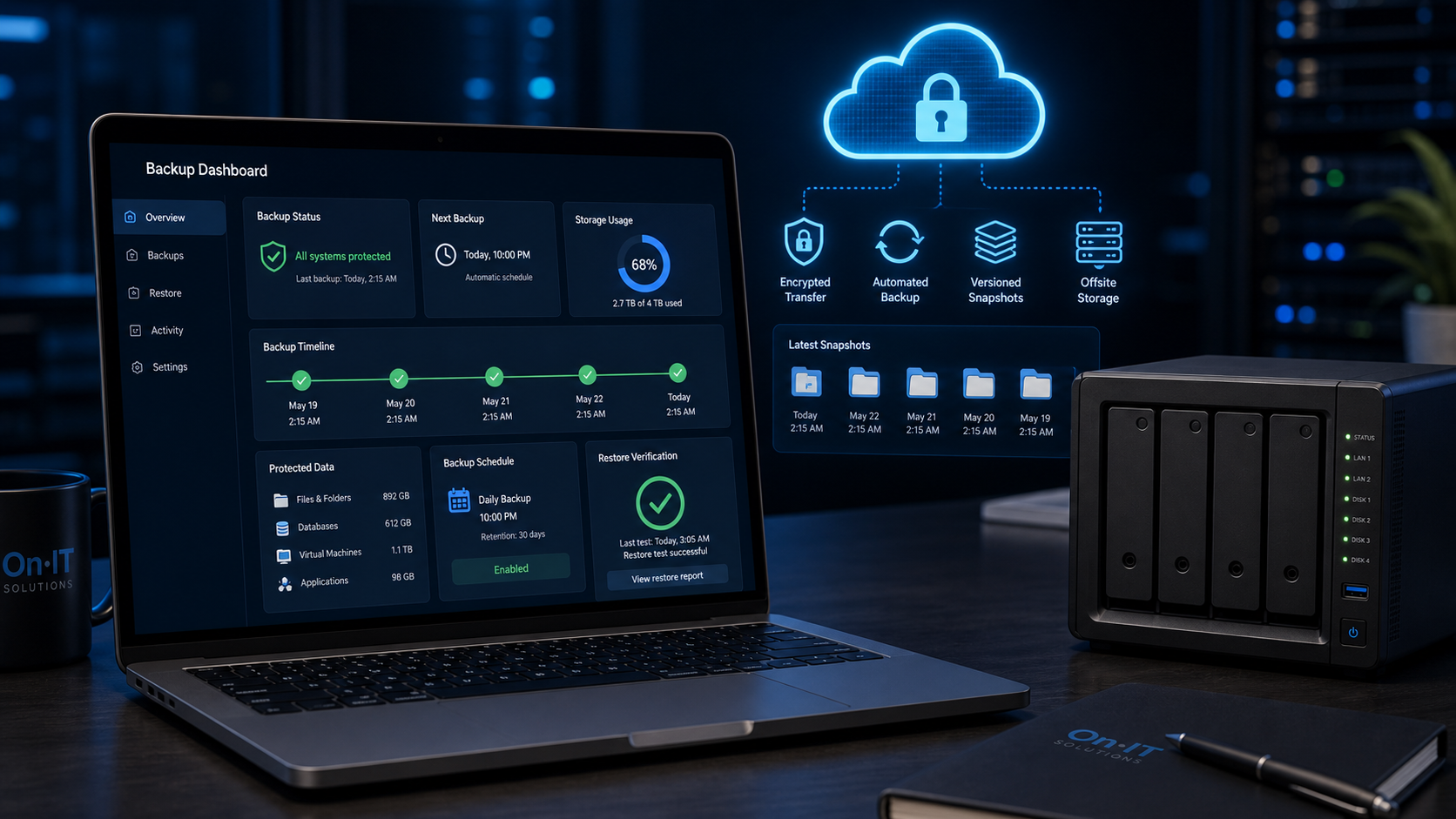
Imagine arriving at your office on a Monday morning to find your server has failed or your hardware has been stolen over the weekend. For many Australian small businesses, this scenario isn't just a nightmare—it's a potential shutdown event that could wipe out years of critical client records and financial data. Implementing a reliable automatic cloud backup is the most effective way to ensure your company remains resilient against unpredictable hardware failures, ransomware, and site-wide disasters.
Implementing the 3-2-1 Backup Strategy for Business Data Protection
To truly secure your operations, we recommend following the industry-standard 3-2-1 backup strategy. This approach ensures you are never reliant on a single point of failure by maintaining three copies of your data: the original files you work on daily, plus two separate backups. These backups should be stored on two different media types—such as an internal server and a high-quality external drive—with at least one copy kept entirely offsite.
By using cloud storage for small business as your offsite "third copy," you protect your company from site-wide disasters that a local drive simply cannot survive. While external hard drives are useful for quick restores, they are vulnerable to the same physical risks as your main computers. If a fire occurs or a thief takes your laptop and the drive sitting next to it, your business data protection plan effectively vanishes. Moving that third copy to the cloud ensures your data remains accessible from any internet connection in Australia, regardless of what happens to your physical office.
Reducing Human Error with Automated Syncing
The greatest advantage of modern cloud solutions is that they remove the risk of human error from the equation. We’ve seen many cases where a busy staff member forgets to plug in a portable drive or "snoozes" a manual update notification, leaving the business unprotected for weeks at a time. An automatic cloud backup runs silently in the background, capturing changes as they happen without requiring daily intervention from your team.
A OneDrive business backup is a common starting point for many teams because it integrates directly with your existing Microsoft 365 environment and syncs files the moment they are saved. This set-and-forget approach is a cornerstone of a robust cybersecurity strategy, keeping your digital assets safe while you focus on running your business. Once you understand why offsite protection is vital, the next step is identifying which specific platform best suits your team's storage and recovery requirements.
Choosing the Right Cloud Storage for Small Business Needs
Selecting a storage platform involves more than just picking the name you recognise; it requires matching your team's daily workflow with the technical reality of your data volume. Most Australian business owners start by looking at tools they already pay for, such as Microsoft 365 or Google Workspace. If your staff is already comfortable with these ecosystems, a OneDrive business backup or Google Drive integration is often the path of least resistance because the software is already installed and ready to go.
For more comprehensive business data protection, you might look toward dedicated services like Acronis, Backblaze, or Carbonite. These platforms differ from standard "sync" tools because they are built specifically for recovery, often providing more granular control over versioning. This allows you to go back in time to a specific version of a file before it was accidentally changed or corrupted. Including one of these dedicated tools as part of your automatic cloud backup system provides a safety net that simple file-sharing apps might lack.
Determining Storage Limits for Your Cloud Storage for Small Business
Before committing to a subscription, take a moment to audit your digital footprint to ensure you aren't overpaying. Count every laptop and workstation in your office and estimate the total gigabytes (or terabytes) of data currently stored across them. Many cloud solutions offer tiered pricing based on data volume, so knowing your requirements helps you choose a plan that accommodates your growth without hitting a hard cap during a critical sync.
- Micro businesses: Often find that the 1TB included with most basic business productivity suites is plenty for documents and spreadsheets.
- Creative agencies: Should look for providers that offer scalable storage, as high-resolution images and video files will quickly exceed standard limits.
- Hybrid teams: Prioritise platforms that offer "Files on Demand," which lets you see all your cloud files in your folder explorer without them taking up physical space on your hard drive.
Checking for Cross-Platform Compatibility
It is common for Australian small businesses to run a mixed environment, such as a marketing team using Macs while the accounts and sales teams use Windows PCs. Your automatic cloud backup software must handle both operating systems seamlessly to ensure no one is left vulnerable. Before you roll out a solution, verify that the background agent runs efficiently on both platforms and doesn't cause system slowdowns that might tempt staff to disable it.
Once you have identified the platform that fits your storage needs and supports your team's hardware, you can begin the actual configuration process to get your files moving to the cloud.
Step-by-Step: Setting Up Your OneDrive Business Backup
Getting your files into the cloud doesn't have to be a complex technical project involving expensive servers or complicated coding. If your office already uses Microsoft 365, you have access to a professional automatic cloud backup solution that is likely already sitting in your taskbar, waiting to be configured. This tool provides a seamless way to ensure your most important documents are duplicated offsite without you ever having to remember to click "upload" at the end of the day.
By integrating a OneDrive business backup into your daily workflow, you effectively bridge the gap between working locally and maintaining high-level business data protection. This setup ensures that if a coffee spill ruins your laptop or a hardware fault occurs, your files are already safe in a secure data centre, ready to be restored to a new device in minutes. To begin the setup process on your Windows PC or Mac, follow these instructions:
- Click the Start menu and type
OneDriveto find and open the application. - When the sign-in window appears, enter your Microsoft 365 business credentials to begin the integration with your cloud solutions environment.
- Once you are signed in, look for the small blue cloud icon in your Windows taskbar (near the clock) or the Mac menu bar at the top of your screen.
- Right-click this blue cloud icon and select
Settingsfrom the menu that appears. - Navigate to the Backup tab (sometimes labelled as "Sync and backup" in newer versions) and select the
Manage backupbutton.
Choosing Folders for Cloud Storage for Small Business
Selecting which data to protect is a critical component of your 3-2-1 backup strategy. Within the "Manage backup" window, you will see options to toggle protection for your Desktop, Documents, and Pictures folders. By selecting these, you are telling the system to automatically redirect any file saved in those locations directly to your cloud storage.
This is particularly useful for employees who tend to save active projects directly to their desktop for quick access. Instead of these files living only on the physical hard drive, they are immediately mirrored in the cloud. For most Australian SMBs, protecting these three core folders covers the vast majority of daily work output, providing a robust layer of business data protection without changing how your team naturally works.
Activating Real-Time Sync and Versioning
Once you have selected your folders and clicked Start backup, the software will begin its initial upload. It is vital to enable automatic sync to ensure that every change you make to a spreadsheet or proposal is captured in real-time. This "set-and-forget" nature of cloud storage for small business means that even if your internet connection drops out momentarily, the system will resume the automatic cloud backup the moment you are back online via the NBN or your office Wi-Fi.
Beyond simple file copying, this setup also provides version history, allowing you to right-click a file and restore it to a version from three hours or three days ago. This capability is a lifesaver if a file becomes corrupted or if a team member accidentally deletes a critical section of a report. By maintaining this constant connection to the cloud, your business remains agile and protected against the most common forms of data loss encountered in the modern Australian workplace. Keeping these systems active is the first step toward a broader strategy that includes every member of your team, regardless of where they are logging in from.
Ensuring Data Protection for Remote Workers
Modern teams are no longer tethered to a single office, which means your company files are likely scattered across home offices and kitchen tables from Perth to Sydney. This decentralised setup makes automatic cloud backup more critical than ever, as you can no longer rely on a central office server to catch every saved document. When a remote employee’s laptop fails or is accidentally damaged, the recovery of those files should be a matter of minutes, not a permanent loss for the business.
Supporting Bring Your Own Device (BYOD) Environments
Many Australian small businesses operate under a BYOD policy, where staff use their own laptops or tablets for work tasks. To maintain high standards of business data protection, you need a solution that is lightweight and easy to install on various hardware without requiring complex network configurations. Your backup software should behave like a silent assistant, protecting professional files without interfering with the user’s personal data or slowing down their home internet connection.
Background Syncing and Cloud Storage for Small Business
The biggest risk to remote productivity is the "human factor"—relying on an employee to manually drag files into a folder or click a 'backup now' button. By utilising cloud storage for small business that features background syncing, files are protected the moment they are created or edited. Services like OneDrive business backup are particularly effective here because they integrate directly into the file explorer, meaning if a staff member saves a file to their 'Documents' folder, it is already on its way to the cloud.
Empowering Staff with User-Friendly Tools
For teams that don't have a dedicated internal IT department, dedicated backup services like Backblaze or Carbonite are excellent choices. These platforms allow remote workers to handle their own scheduled backups with a simple setup wizard that doesn't require administrator-level technical expertise to manage. They are designed to be "set and forget," providing a safety net that works regardless of where the employee is located or which Australian NBN provider they use.
Verifying Support for Diverse Operating Systems
It is common for Australian remote teams to be a mix of Windows enthusiasts and Mac power users. Before committing to a service, verify that it offers full functionality across both operating systems to ensure no one is left out of your 3-2-1 backup strategy. Consistent protection across all devices ensures that your cloud solutions remain uniform and easy for management to monitor from a central dashboard. Ensuring every device is covered creates a reliable safety net that keeps your business running smoothly, regardless of the hardware your team prefers. Once your remote team is secured, you can focus on the long-term maintenance of these systems to ensure they remain functional as your data grows.
Maintaining Your Backup System for Long-Term Reliability
Setting up your backup is only half the battle; ensuring it actually works when a crisis hits is what separates a resilient business from one that loses everything. Once you have configured your automatic cloud backup, your first hurdle is often the clock. Depending on the volume of files you are protecting and your local NBN upload speed, that initial synchronisation can take anywhere from a few hours to several days to reach 100% completion.
It is vital that you allow this first upload to finish without interruption. If you shut down your computer or disconnect your internet mid-way through, the process will have to resume later, potentially leaving your most recent work unprotected. Think of this initial phase as the heavy lifting; once it is done, your cloud storage for small business becomes much more efficient and less demanding on your connection.
Optimising Business Data Protection with Incremental Updates
The good news is that you won’t have to wait days every time you save a new document. Most modern systems use "incremental backups," meaning the software only identifies and uploads the specific pieces of data that have changed since the last successful run. This saves significant bandwidth and ensures your OneDrive business backup stays up to date in real-time without slowing down your office internet connection during peak work hours.
To keep this cycle running smoothly, you must ensure your hardware remains part of the loop. If you are backing up an external hard drive as part of your 3-2-1 backup strategy, that drive needs to stay physically connected to your computer during your scheduled backup windows. Similarly, laptop users should leave their devices powered on and connected to Wi-Fi overnight occasionally to allow larger maintenance tasks to complete while the machine isn't being used for active work.
The Gold Standard: Regularly Testing Your Recovery
The most common mistake small business owners make is assuming the backup is working just because the software is installed. To truly guarantee reliability, you should perform a "fire drill" at least once a month to ensure the system is capturing data as expected. This process confirms that your files aren't just being sent into a void, but are actually recoverable when you need them.
- Open your backup software or log in to your cloud storage web portal.
- Locate a specific file or folder that you have recently edited or created.
- Select the "Restore" or "Download" option and save the file to a temporary folder on your desktop.
- Open the restored file to ensure it is the correct version and that no data is corrupted.
Testing your recovery process ensures that your business data protection strategy is practical and functional. If you encounter errors during a test restore, it is much better to find out now than during a genuine emergency. By staying proactive with these small maintenance tasks, you can be confident that your business is ready to bounce back from any data loss event with minimal downtime.
Frequently Asked Questions
What is the 3-2-1 backup rule for small businesses?
The 3-2-1 rule involves keeping three copies of your data: the original and two backups. These should be stored on two different media types (like a local server and a hard drive), with at least one copy stored offsite, typically using an automatic cloud backup service.
Is OneDrive enough for a full business backup?
OneDrive is an excellent real-time sync tool for daily files and is included with Microsoft 365, but it is often best paired with a dedicated backup service. Using both ensures you have version history and protection against accidental deletion or ransomware that might sync to the cloud.
How long does the first cloud backup take?
The initial backup can take anywhere from a few hours to several days depending on the volume of data and your internet upload speed. Once the first backup is complete, subsequent 'incremental' backups are much faster as they only upload new or modified files.
Sources
- https://design2web.ca/blog/how-to-set-up-automatic-backups/
- https://www.crashplan.com/blog/cloud-backup-solutions-for-small-businesses-everything-you-need-to-start/
- https://adaptiveis.net/blog/cloud-backup-for-small-business/
- https://www.pcmag.com/picks/the-best-cloud-backup-services-for-business
- https://www.veeam.com/blog/cloud-backup-services-for-smb.html
- https://www.hycu.com/blog/top-8-small-business-backup-solutions-cloud-premises
Need Expert IT Help?
Still stuck, or want this handled professionally? Our technicians provide fast remote and on-site IT support across Australia. Whether it's a one-off issue or ongoing support for your whole team, we've got you covered. Get in touch with OnIT Solutions today.