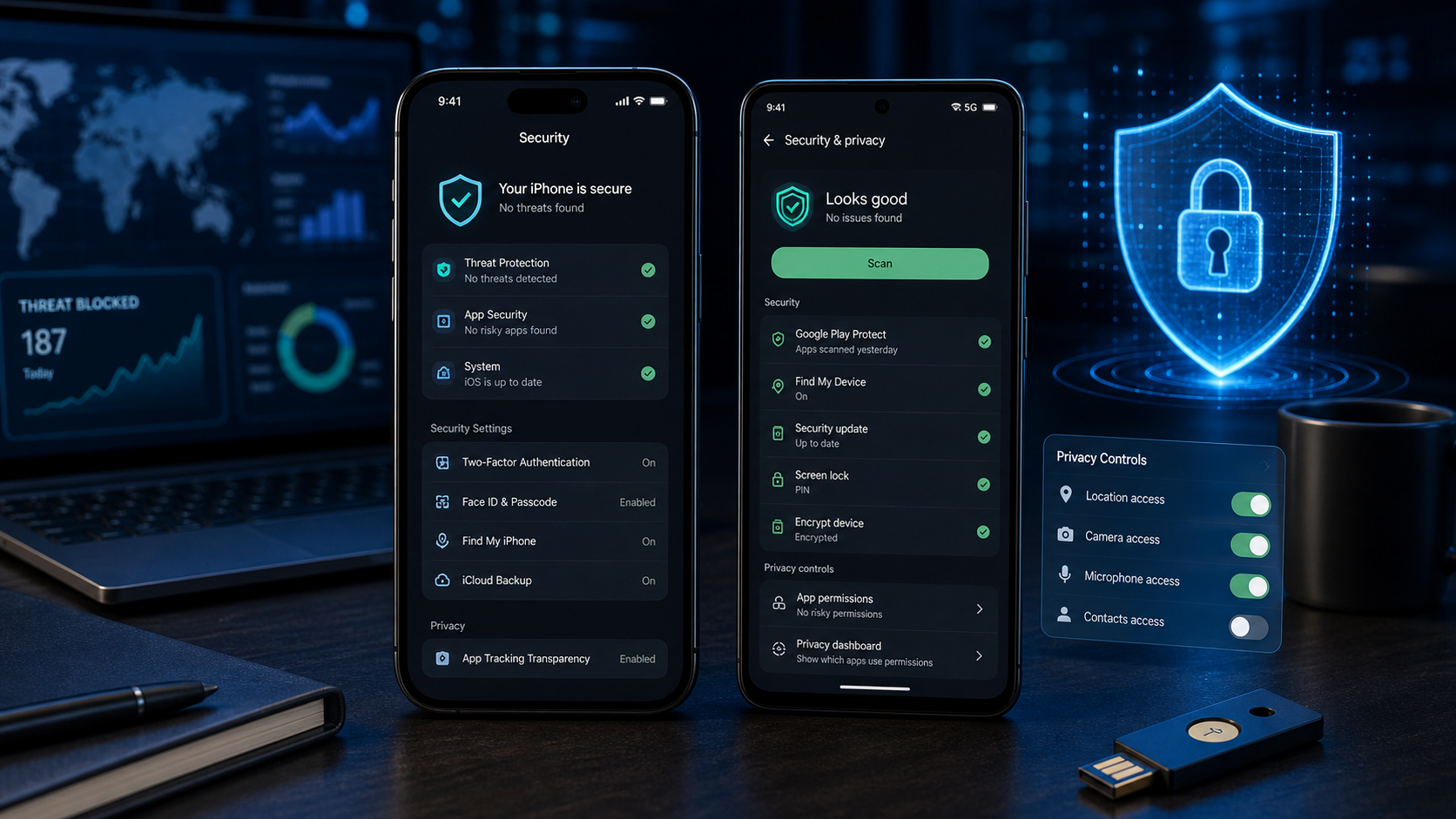
Your smartphone is the most vulnerable device your business relies on — and most people have no idea how exposed it actually is. Whether you're on iPhone or Android, the combination of work email, banking apps, two-factor authentication codes, and cloud access makes your phone a single point of failure for your entire digital life. This guide walks through the practical steps every Australian business owner and employee should take right now to lock down their device against hackers.
Securing Your Device with Strong Access Controls
For most Australian business owners and employees, a smartphone is no longer just a communication tool; it is a portable office containing sensitive emails, banking apps, and client data. Physical access remains the most immediate threat to your security. If a device is left unattended at a local cafe in Melbourne or lost on a Sydney commuter train, the only thing standing between a thief and your business's intellectual property is your lock screen configuration.
The Hierarchy of Screen Locks: Patterns vs. PINs vs. Passwords
Most modern smartphones offer several ways to lock your screen, but not all are created equal. Many Android users prefer Patterns because they are fast, but they are often the least secure option. Research shows that people frequently use simple shapes that are easy to guess, and "smudge attacks"—where a hacker looks at the oily residue left on your screen to trace the pattern—are a very real risk.
PINs (Personal Identification Numbers) are a step up, especially if you use a six-digit code rather than the standard four. However, the gold standard for mobile security is a true Password that incorporates letters, numbers, and special characters. By choosing a complex password, you exponentially increase the number of combinations a hacker would need to guess, effectively rendering "brute-force" attacks useless.
BlueSky!22 is significantly harder to crack than a six-digit PIN like 102938.Leveraging Biometric Authentication
While a complex password is secure, typing it in fifty times a day can be frustrating. This is where biometric authentication, such as Face ID or Touch ID, becomes your best friend. Biometrics act as a form of multifactor authentication (MFA)—it requires "something you are" (your fingerprint or face) to unlock the "something you know" (your encrypted password stored in the device's secure enclave).
To set up or strengthen these controls on your device, look for the following general areas in your settings menu:
- Open your Settings app.
- Search for a section labeled
Face ID & Passcode,Touch ID, orBiometrics and Security. - Follow the prompts to register your face or fingerprints. For the best results, register multiple angles of your face or different fingers to ensure the device recognises you even in low light or while wearing glasses.
- Ensure that Require Passcode is set to
Immediatelyso the phone locks the moment the screen goes dark.
Aligning with Australian Security Standards
The Australian Cyber Security Centre (ACSC) provides clear guidelines for businesses to protect themselves against common threats. One of the key takeaways from the ACSC is the importance of "User Attribution," which essentially means ensuring that only the authorised user can access a specific device. By implementing strong passwords and biometric locks, Australian SMBs can better align with the cybersecurity frameworks that protect our local economy.
Strong access controls do more than just stop a thief; they provide a vital layer of encryption. On most modern iPhones and Android devices, your data is actually encrypted using your passcode as the key. Without that code, the data on the phone looks like gibberish to anyone trying to plug the device into a computer to "harvest" your business files.
Ensuring your device is physically locked is a critical first step, yet many users accidentally leave doors open through the very features designed to make life easier. Every setting you choose contributes to the overall resilience of your digital workspace at OnIT Solutions.
Locking Down Lock Screen Access and Remote Tracking
While a strong password is your first line of defence, many Australian users don't realise that their phone can still "talk" to strangers while it is locked. Modern smartphones are designed for convenience, which often means voice assistants and notifications are active even when the screen is dark. For a business professional, this convenience can become a liability if sensitive information is leaked to anyone who happens to pick up the device.
The Risk of Lock Screen Voice Assistants
Voice assistants like Siri and Google Assistant are incredibly helpful for setting reminders or checking the weather, but they can inadvertently allow unauthorised users to interact with your data. Without unlocking your phone, someone could potentially ask the assistant to read your latest text messages, reveal your next calendar appointment, or even place outgoing calls. To maintain a high standard of cybersecurity, it is a best practice to restrict these assistants so they only respond once you have verified your identity.
To disable Siri on the iPhone lock screen:
- Open the Settings app.
- Scroll down and tap on
Face ID & Passcode(orTouch ID & Passcodeon older models). - Enter your current passcode to access these sensitive settings.
- Locate the section titled Allow Access When Locked.
- Find Siri in the list and toggle the switch to Off.
To manage Google Assistant on your Android lock screen:
- Wake your phone and say,
"Hey Google, open Assistant settings." - Once the settings menu appears, tap on Personalisation.
- Look for the Personal Results option.
- Review the Lock Screen Personal Results setting. To maximise security, ensure this is toggled Off so that your private data (like contacts and emails) isn't accessible via voice while the phone is locked.
Enabling Your "Kill Switch" with Remote Tracking
If you lose your phone at a busy airport in Sydney or it’s stolen from a job site, your primary goal is to ensure your business data doesn't fall into the wrong hands. Both Apple and Google provide powerful tools that allow you to locate your device on a map, lock it remotely, or perform a "remote wipe" that erases every bit of data on the storage drive. Think of this as your ultimate safety net; if the physical device is gone, your cloud-synced business files remain safe because the gateway to them has been destroyed.
How to enable "Find My" on iPhone:
- Open Settings and tap on your Name/Apple ID at the very top.
- Tap on Find My.
- Select Find My iPhone and ensure the toggle is switched to On.
- We also recommend enabling Send Last Location, which pings Apple’s servers with the phone's position just before the battery dies.
How to enable "Find My Device" on Android:
- Open the Settings app.
- Tap on Security.
- Find and tap on Find My Device.
- Ensure the feature is toggled to On.
By restricting what your phone can do while locked and ensuring you have a remote recovery plan, you significantly reduce the "surface area" an attacker can exploit. However, securing the software is only half the battle; you must also manage the invisible signals your phone broadcasts to the world around you.
Controlling Your Connections: Wi-Fi, Bluetooth, and NFC
While securing your lock screen keeps physical intruders out, your wireless connections are the invisible doors that hackers use to enter your device remotely. In bustling Australian environments—think of a busy morning at a café in Sydney's CBD or waiting for a flight at Tullamarine Airport—your phone is constantly "talking" to the world. If you leave your Wi-Fi, Bluetooth, and NFC (Near Field Communication) active and "discoverable," you are essentially broadcasting your presence to anyone with the right tools to listen.
The Hidden Dangers of Wi-Fi and Bluetooth
Most of us leave Wi-Fi enabled so our phones can automatically reconnect to our home or office networks. However, hackers can exploit this by setting up "rogue access points" with names that look legitimate, such as "Free Airport Wi-Fi" or "Guest Network." Your phone may attempt to connect to these automatically, allowing an attacker to intercept your business data or monitor your activity. Similarly, Bluetooth is often left on for headphones or car connections, but an active Bluetooth signal in a public space can be used for "Bluebugging," where a hacker gains control of your phone to make calls or access your messages.
How to Manage Your Wireless Hardware
Developing a habit of turning off these connections when you aren't using them is a key part of a comprehensive cybersecurity strategy for any Australian professional. Staying "hidden" is always safer than being "discoverable." Follow these steps to take control of your hardware toggles:
For iPhone Users:
- Open the
Settingsapp on your home screen. - Tap on
Wi-Fiand toggle the switch to off. - Go back to the main Settings menu, tap
Bluetooth, and toggle that switch to off as well. - To manage NFC (used for Apple Pay), ensure your device requires Face ID or a passcode for every transaction, preventing unauthorised "skimming" in crowded areas.
For Android Users:
- Swipe down from the top of your screen to reveal the Quick Settings panel.
- Touch and hold the
Wi-Fiicon to enter the full menu, then toggle offUse Wi-Fi. - Return to the Quick Settings and tap the
Bluetoothicon to turn it off. - For NFC, go to
Settings>Connected devices>Connection preferencesand toggleNFCto off when you are not planning to make a payment at a local shop.
Staying Hidden in Public Spaces
By keeping these connections off, you significantly reduce your "attack surface." This is a core recommendation from the Australian Cyber Security Centre (ACSC), which advises that mobile users should avoid connecting to public Wi-Fi for any task involving sensitive information, such as business banking or accessing company servers. When you are out and about, using your phone’s 4G or 5G data is almost always more secure than a "free" public hotspot.
Beyond Wi-Fi and Bluetooth, NFC technology—the same tech that lets you tap-and-go at Coles or Woolies—should also be monitored. While generally very secure, keeping it active means your phone is always listening for a nearby reader. Turning it off when you're in a high-traffic area ensures that no one can attempt to interact with your device's payment chips without your knowledge. Managing these settings manually might seem like a chore, but it is the most effective way to ensure your device doesn't become a gateway for data harvesting.
Controlling who and what can connect to your phone is an essential practice, but ensuring your phone’s internal "brain" is protected is just as vital.
Managing Software Updates and App Permissions
In the world of mobile security, ignoring a software update notification is a bit like seeing a broken window at your office and deciding to fix it "next week." Hackers and cybercriminals constantly look for these specific unpatched vulnerabilities—known as "exploits"—to gain access to your device without you ever knowing. For Australian small-to-medium businesses, where mobile phones are often linked to corporate emails and sensitive cloud solutions, staying current is the most effective way to stay safe.
Why Updates Are Your Best Defense
Software updates are not just about getting the latest emojis or a refreshed interface. Their primary purpose is to deliver security patches that "plug the holes" discovered by manufacturers or security researchers. When the Australian Cyber Security Centre (ACSC) releases alerts about mobile threats, their number one recommendation is almost always to update your software immediately. By delaying an update, you are essentially leaving a digital back door open for anyone with the right tools to walk through.
Step-by-Step: Keeping Your OS Current
Updating your phone is a straightforward process that takes only a few minutes. Because of the potential for a device to restart, we recommend doing this while connected to Wi-Fi and a power source.
For iPhone Users:
- Open the Settings app.
- Tap on General.
- Select
Software Update. - If an update is available, tap
Download and Install. - Tap
Installand enter yourpasscodewhen prompted to begin the process.
For Android Users:
- Open your Settings app.
- Scroll down and tap on System.
- Tap on Advanced to reveal more options.
- Select
System Updateand follow the prompts to download and install any pending security patches.
Revoking Unnecessary App Permissions
Even a fully updated phone can be a security risk if the apps installed on it are "harvesting" your data. Data harvesting occurs when an app collects more information about your habits, location, or business contacts than it actually needs to function. For example, a simple calculator app has no legitimate reason to access your microphone or track your precise location at 2:00 PM on a Tuesday.
To protect your privacy and your business's confidentiality, you should perform a "Permission Audit" at least once a month. This is a core part of maintaining a robust cybersecurity posture for your mobile workforce. By limiting what apps can see and hear, you significantly reduce the amount of data that could be leaked if that app's parent company ever suffers a data breach.
How to audit your permissions:
- On iPhone, go to
Settings > Privacy & Securityto see a list of features like "Microphone," "Camera," and "Location Services." Tap each one to see which apps have access and toggle off anything that seems unnecessary. - On Android, navigate to
Settings > Privacy > Permission Manager. This provides a clear dashboard showing exactly which apps are using your sensitive hardware. - Always choose the "While Using the App" option for location access rather than "Always Allow" to prevent background tracking.
Regularly auditing these permissions ensures that your device remains a closed ecosystem, protecting both your personal life and your professional reputation. Taking these small steps creates a much harder target for hackers, ensuring that your mobile device remains an asset to your business rather than a liability.
Mobile Security Best Practices for Australian Businesses
For small-to-medium businesses (SMBs) across Australia, the shift to remote and hybrid work has made the smartphone a primary workstation. While this offers incredible flexibility, it also introduces the risk of "data harvesting." This occurs when seemingly harmless apps collect far more information than they need—such as your location, contacts, or even clipboard data—and send it to third-party servers. For a business, this could mean the accidental leak of confidential client lists or sensitive project details, directly impacting your competitive advantage and reputation.
The Power of Two-Factor Authentication (2FA)
One of the most effective ways to stop a hacker in their tracks is by implementing Two-Factor Authentication (2FA) on every account you access through your mobile device. Even if an attacker manages to steal your password via a phishing link or a data breach, they cannot gain access to your files without that second "key." This is a foundational element of a robust cybersecurity strategy for any modern business.
To secure your business accounts, we recommend using a dedicated authenticator app rather than relying on SMS codes. SMS codes can be intercepted through "SIM swapping" attacks, whereas an app generates a time-based code directly on your hardware. When setting up 2FA for your work email or banking, look for the Security or Sign-in settings within the app to enable this feature.
Aligning with the ACSC Essential Eight
The Australian Cyber Security Centre (ACSC) recommends a framework known as the "Essential Eight" to help businesses mitigate cyber threats. While originally designed for traditional office networks, these principles apply perfectly to mobile devices. By enforcing regular updates and multi-factor authentication, your business is already ticking off several of these critical mitigation strategies. At OnIT Solutions, we help our managed IT clients map these mobile habits to their broader compliance requirements, ensuring that every "endpoint"—including the phone in your pocket—is as secure as the server in your office.
A Simple 'Mobile Hygiene' Checklist for Employees
Security is a team effort. To help your staff stay vigilant, consider sharing this simple monthly "Mobile Hygiene" checklist as part of your company's official security policy:
- The "Unused App" Audit: Delete any apps that haven't been opened in the last 30 days. Fewer apps mean a smaller "attack surface" for hackers.
- Review Permissions: Go into your phone settings and check which apps have access to your
Camera,Microphone, andLocation. If a calculator app is asking for your location, revoke it immediately. - Restart Your Device: Encourage employees to restart their phones at least once a week. This can clear out certain types of "non-persistent" malware that live in the device's temporary memory.
- Check Login History: Periodically review the "Active Sessions" in apps like Outlook or Teams to ensure no unfamiliar devices are logged into your account.
By treating mobile security as an ongoing habit rather than a one-time setup, Australian businesses can significantly reduce their risk of a data breach. Creating this proactive mindset is the first step toward fostering a truly resilient workplace culture.
Building a Mobile-First Security Culture
Most of us would never dream of leaving a work laptop unlocked on a table at a busy Melbourne cafe, yet we often treat our smartphones with significantly less caution. In the modern Australian workforce, the "mobile-first" approach means your phone is likely your most-used business tool. Because these devices are always in our pockets, they feel personal and informal, but from a security perspective, they are high-stakes entry points into your company’s network.
The "Laptop Parity" Mindset
To truly secure your business, you must treat your smartphone with the same rigour as a high-end work laptop. Whether you are a tradie in Brisbane or a consultant in Sydney, your phone likely holds the keys to your entire digital life. It contains your Microsoft 365 or Google Workspace credentials, your Xero or MYOB accounting apps, and your entire client contact list. If you wouldn't install unverified software on your office PC, you should never do so on your phone.
Adopting this mindset means being intentional about every interaction. This includes pausing before clicking a link in a text message (a common tactic known as "smishing") and being wary of apps that ask for permissions that don't match their function. A calculator app, for example, has no legitimate reason to access your contact list or your physical location.
Moving from Reactive to Proactive
Many small-to-medium businesses only seek out cybersecurity guidance after a breach has occurred. By that point, sensitive data may have already been exfiltrated, or your business bank accounts could be compromised. A proactive security culture focuses on "pre-flight" checks—ensuring the device is a "hard target" before you ever connect to a public network or open a sensitive work email.
Consistency is the enemy of the hacker. By making security a habit rather than a reaction to a threat, you eliminate the windows of opportunity that cybercriminals rely on. This is especially important for Australian SMBs that may not have a dedicated internal IT department but still need to meet high standards of data protection for their clients.
Your Daily Mobile Hygiene Checklist
To keep your device secure in a mobile-first world, incorporate these simple daily and weekly actions into your routine. These steps ensure that security becomes a seamless part of your workday rather than a technical chore:
- Daily: Restart your phone. This simple act can disrupt certain types of "non-persistent" malware that reside in the device's temporary memory.
- Daily: Disable Wi-Fi and Bluetooth when leaving the office. This prevents your phone from automatically "shaking hands" with rogue access points or tracking beacons in public spaces like shopping centres or airports.
- Weekly: Manually check for System Updates. Even if you have "Automatic Updates" toggled on, some critical security patches require manual approval to finalise the installation.
- Weekly: Review "Background App Refresh" settings. Minimise the number of apps allowed to run and communicate when you aren't using them; this protects your data and saves battery life.
- Monthly: Audit App Permissions. Go into your settings and see which apps have access to your camera, microphone, and location. If an app hasn't been used in 30 days, delete it.
By fostering this culture of vigilance, Australian businesses can leverage the benefits of a mobile workforce without inviting unnecessary risk. Aligning your daily habits with professional managed IT best practices ensures that your most portable tool is also one of your most secure. Taking these small, consistent steps today is the best way to ensure your business data remains protected well into the future.
Sources
- https://www.security.org/antivirus/hacked-phone/
- https://www.mcafee.com/blogs/mobile-security/7-tips-to-protect-your-smartphone-from-getting-hacked/
- https://www.bitdefender.com/en-us/blog/hotforsecurity/five-ways-your-iphone-hacked-how-to-prevent-it
- https://usa.kaspersky.com/resource-center/threats/how-to-stop-phone-hacking
- https://www.reddit.com/r/IdentityTheft/comments/1gx7sxj/basics_of_preventing_your_phone_being_hacked_my/
- https://asee.io/blog/protect-mobile-device-security-tips/
Need Expert IT Help?
Still stuck, or want this handled professionally? Our technicians provide fast remote and on-site IT support across Australia. Whether it's a one-off issue or ongoing support for your whole team, we've got you covered. Get in touch with OnIT Solutions today.