Why Your Business Needs a Reliable Mobile Hotspot for Laptop Use
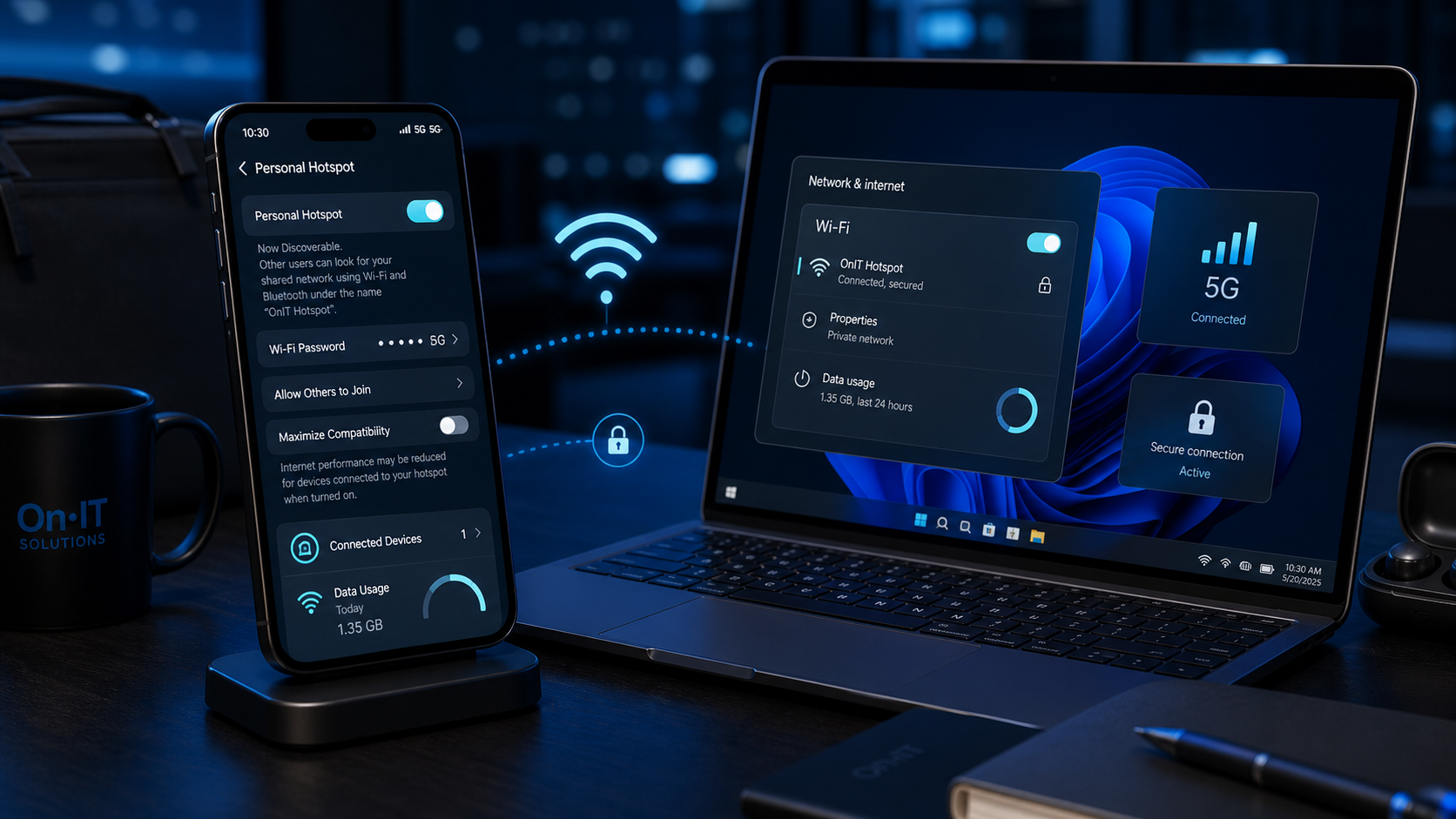
Finding yourself tethered to a slow, unreliable public Wi-Fi network at a local coffee shop can be more than just frustrating—it can be a genuine security risk for your business. Setting up a mobile hotspot for laptop use allows you to carry your office’s connectivity in your pocket, ensuring that "out of office" never means "out of touch." This simple technology turns your smartphone's 4G or 5G signal into a private Wi-Fi network, providing a consistent experience for remote teams across Australia.
Eliminating the Risks of Public Wi-Fi
Public Wi-Fi networks in Australian cafes, airports, and hotels are notorious for being poorly secured. Many of these "free" services lack basic encryption, making them prime targets for malicious actors who use "man-in-the-middle" attacks to intercept sensitive data. When you use a portable Wi-Fi hotspot, you are essentially creating a private, encrypted tunnel directly to the internet that bypasses this insecure public infrastructure entirely.
By avoiding communal networks, you protect your company from several common threats:
- Data Interception: Hackers can "sniff" traffic on open networks to steal login credentials or financial details.
- Snooping: Other users on the same public network may be able to see which files you are accessing.
- Malware Injection: Some unsecured networks can be used to push malicious software updates to your laptop.
Boosting Productivity with Smartphone Data Sharing
Business travellers and remote workers often find themselves in "dead zones" where guest Wi-Fi is either unavailable or restricted. Whether you are in a hospital waiting room, a client’s boardroom, or a regional transit hub, smartphone data sharing ensures you don't have to waste time hunting for passwords or technical support. This independence allows you to jump into video calls or access cloud solutions the moment you open your laptop.
Choosing Between Wireless and USB Tethering
While most people think of hotspots as wireless, USB tethering is a powerful alternative for business use. By connecting your phone to your laptop with a physical cable, you create a hardwired connection that is often faster and less prone to interference than a standard wireless signal. This method also prevents your phone from "announcing" its presence to everyone in the vicinity, adding an extra layer of privacy to your mobile setup. Having these options ready ensures that no matter where your work takes you, your connection remains stable and professional.
How to Set Up a Portable Wi-Fi Hotspot on Your Android Device
Walking into a meeting only to find the guest Wi-Fi is down is a scenario every professional dreads, but your Android phone can save the day in seconds. Configuring a mobile hotspot for laptop connectivity ensures that your work remains uninterrupted, even when local infrastructure fails you. Most modern Android smartphones make this process incredibly simple, essentially turning your 4G or 5G mobile data into a broadcast signal that your computer can "see" just like a home router.
Activating Your Portable Wi-Fi Hotspot
To begin sharing your connection, you will need to head into your phone's main settings area. While every manufacturer (like Samsung, Google, or Oppo) tweaks their menu layout slightly, you will generally find the necessary toggle under a heading such as Network & internet or Connections. Look for a sub-menu labelled Hotspot & tethering to find the controls for your portable Wi-Fi hotspot.
It is important to note that most Android devices require you to disable your standard Wi-Fi connection before the hotspot feature can be activated. Because the phone needs to use its internal hardware to broadcast a signal rather than receive one, you will likely see a prompt asking for permission to turn off Wi-Fi. Simply accept this prompt to allow your phone to begin smartphone data sharing via its cellular antenna.
Configuring Secure Mobile Internet Settings
Before you connect your laptop, you should ensure your network is private and secure. Within the hotspot settings menu, you will see options to change the "Hotspot name" (also known as the SSID) and the "Hotspot password." For the best secure mobile internet experience, we recommend choosing a name that doesn't identify your specific phone model or your full name to passersby.
- Tap on
Hotspot nameand enter a unique identifier for your network. - Select
Securityand ensure it is set to WPA2-Personal or WPA3-Personal (the latter is more secure). - Tap on
Hotspot passwordand create a strong, unique password that you haven't used for other accounts. - Toggle the main switch to On to start broadcasting.
Connecting Your Laptop to the Network
Once your phone is broadcasting, switch your attention to your computer. Click on the wireless network icon in your laptop’s system tray (bottom right on Windows or top right on macOS) to view the list of available networks. Your phone's unique name should appear in this list within a few seconds. Select it, click Connect, and enter the password you just created on your Android device.
Once the connection is established, your laptop will treat your phone as its primary internet source. If you find the wireless signal is struggling in a crowded area with lots of interference, you might want to explore the benefits of USB tethering, which provides a more direct and stable data path. Keeping these mobile tools ready is a core part of any modern cybersecurity and business continuity strategy for Australian remote workers.
Using USB Tethering for a Faster and More Secure Connection
Plugging your phone directly into your computer might feel a bit old-school, but it is actually the gold standard for reliability when you are working on the go. While most people instinctively reach for a wireless mobile hotspot for laptop connectivity, a physical connection is often the superior choice for intensive business tasks. Using your standard charging cable to share data ensures that your connection remains stable even in signal-heavy environments like the Sydney CBD or a busy airport terminal where Wi-Fi interference is common.
Setting Up Your Physical Connection
To get started, you will need a high-quality USB cable—the one that came with your phone is usually the most reliable. Once you have physically connected the devices, your computer should recognise the phone, though you might need to tap a notification on your phone screen to allow data access. This method is a robust part of any secure mobile internet strategy because it eliminates the risk of "packet sniffing" that can occur over wireless airwaves.
- Connect your phone to your laptop using a compatible USB charging cable.
- Open the Settings app on your Android device.
- Navigate to the Network & internet (sometimes called Connections) menu.
- Locate and tap on Hotspot and Tethering.
- Toggle the USB tethering switch to the 'On' position.
The Performance Benefits of USB Smartphone Data Sharing
Beyond the simple ease of use, there are significant hardware advantages to choosing a wired connection. Many users don't realise that running a portable Wi-Fi hotspot can cause a smartphone's internal processor to run between 2 and 6 degrees Celsius hotter than normal. This excess heat is not just uncomfortable; it can lead to long-term battery degradation and may even cause your phone to throttle its speeds to cool down. USB tethering avoids this heat spike, keeping your device running efficiently during long work sessions.
From a productivity standpoint, smartphone data sharing via cable also provides much lower latency. This means less "lag" during important Microsoft Teams meetings or when accessing sensitive files through your company's managed IT portal. Furthermore, your laptop will often provide a "trickle charge" to your phone while tethered, ensuring your phone doesn't die right when you need to make an important client call. It is a more discreet way to work in public, as you aren't "announcing" a network name to everyone sitting nearby, which significantly bolsters your overall cybersecurity.
This hardwired approach provides the stability and peace of mind required for high-stakes professional environments where every second of uptime counts.
Optimising Performance and Smartphone Data Sharing
Nothing kills a productive afternoon like a video call that constantly freezes because your signal isn't quite strong enough for the task at hand. When you rely on a mobile hotspot for laptop access, your internet speed is entirely dependent on your phone's cellular reception and its proximity to your computer. Taking a moment to verify your connection quality before you start a data-heavy project can save you from professional embarrassment during a critical client presentation.
Pre-Flight Checks for a Secure Mobile Internet Experience
Before you dive into your workflow, it is best practice to test the "pipe" you are working with. Download the Speedtest app on your smartphone or visit the website on your laptop once connected to see your current download and upload speeds. For a smooth video conferencing experience on platforms like Microsoft Teams or Zoom, you generally want to see an upload speed of at least 2-3 Mbps.
If your speeds are lagging, try the following to improve your portable Wi-Fi hotspot performance:
- Positioning: Move your phone closer to a window to reduce signal interference from building materials like concrete or metal.
- Frequency: If your phone allows it, toggle between 2.4GHz and 5GHz bands in the hotspot settings; 5GHz is faster but has a shorter range, while 2.4GHz is better at penetrating walls.
- Physical Connection: If wireless interference is high, switch to USB tethering to eliminate Wi-Fi congestion entirely.
Managing Costs During International Travel
While many Australian telcos offer "Five Dollar a Day" roaming for certain countries, these costs can spiral if you are travelling for weeks or visiting regions not covered by standard agreements. Relying on smartphone data sharing while overseas requires a proactive approach to avoid exorbitant excess charges. If your provider doesn't offer a competitive international roaming pack, consider using a local eSIM provider.
By downloading a digital SIM before you leave Australia, you can access local data rates that are often a fraction of the cost of roaming. This ensures you still have secure mobile internet without needing to trust the "Free Guest Wi-Fi" at a foreign airport or hotel. This is a core part of a modern cybersecurity strategy, as it keeps your traffic off potentially monitored international public networks.
Sharing Your Laptop's Connection via Windows
Interestingly, the sharing doesn't always have to go from your phone to your computer. If your Windows laptop is connected to a reliable ethernet port in a boardroom or a specific Wi-Fi network that only allows one device per login, you can turn your laptop into a hotspot itself. This allows you to share that connection with your smartphone or a colleague's tablet.
To set this up, look for the "Mobile Hotspot" option within your Windows Network settings. You can choose to share your internet connection over Wi-Fi or Bluetooth, providing flexibility for the rest of your devices. This versatility ensures that your team stays connected regardless of the hardware constraints of your environment, keeping your managed IT ecosystem fluid and functional. Establishing these habits early ensures that your mobile office is just as resilient as your primary workspace.
Integrating Secure Mobile Internet into Your Business Continuity Plan
Imagine the sudden silence that falls over an office when the NBN goes dark during the middle of a busy Tuesday morning. For an Australian small business, every minute of downtime translates directly to lost revenue and missed opportunities. Establishing a mobile hotspot for laptop usage as a formal backup protocol ensures your team can pivot to cellular data instantly, maintaining a seamless workflow even when local infrastructure fails.
Setting Up a Secure Mobile Internet Standard
A business continuity plan is only as strong as its weakest link, and in a remote or emergency setup, that link is often the wireless connection. To align with the Australian Cyber Security Centre (ACSC) guidelines, your business should standardise how staff configure their devices for smartphone data sharing. This prevents the "shadow IT" problem where employees use weak passwords or outdated security protocols just to get back online quickly.
When implementing these standards, ensure all company-approved devices are set to use WPA3 encryption if the hardware supports it. This is significantly more resistant to modern "brute force" attacks than older WPA2 standards. Furthermore, your internal policy should dictate that any portable Wi-Fi hotspot created by an employee must have a unique, complex password that is never shared with external parties or used for other accounts.
Why USB Tethering and Hotspots Outperform Public Wi-Fi
While it may be tempting for staff to wander to the nearest cafe to use their free internet during an outage, this introduces significant risks to client confidentiality. You must educate your team on the importance of using secure mobile internet as their primary backup. Public networks lack the point-to-point encryption provided by a personal cellular connection, making them unsuitable for handling sensitive company data or accessing internal cloud solutions.
For even greater security and reliability, encourage the use of USB tethering. Because this method requires a physical cable, it does not "announce" a wireless signal to the surrounding area, making it virtually invisible to outsiders. It also provides a more stable throughput for data-heavy tasks, ensuring that your managed IT environment remains stable even under pressure. By treating your mobile connection as a professional-grade redundancy tool rather than a last-minute convenience, you build a more resilient and agile workforce ready for any technical hurdle.
Frequently Asked Questions
Can I use my mobile hotspot while connected to Wi-Fi?
Generally, no. Most Android smartphones require you to turn off Wi-Fi to enable the mobile hotspot feature, as the phone must use its internal cellular antenna to broadcast the internet signal to other devices.
Does using a mobile hotspot for my laptop drain my phone battery quickly?
Yes, mobile hotspotting is a power-intensive task that can cause your phone to run significantly hotter and drain the battery faster than normal usage. To mitigate this, consider using USB tethering which can provide a more stable connection while drawing some power from your laptop.
Is USB tethering safer than a wireless portable Wi-Fi hotspot?
USB tethering is considered more secure because it requires a physical cable connection between your phone and laptop. This prevents your network from being visible to others in public places and eliminates the risk of unauthorised users attempting to guess your Wi-Fi password.
Sources
- https://www.ghacks.net/2024/11/18/how-to-use-your-android-phone-as-a-mobile-hotspot-provider-for-your-laptop/
- https://www.speedtest.net/about/knowledge/how-to-hotspot
- https://www.hp.com/us-en/shop/tech-takes/wifi-tethering-phone-mobile-hotspot
- https://www.aarp.org/personal-technology/smartphone-wifi-hot-spot/
- https://support.microsoft.com/en-us/windows/use-your-windows-device-as-a-mobile-hotspot-c89b0fad-72d5-41e8-f7ea-406ad9036b85
- https://support.google.com/android/answer/9059108?hl=en
Need Expert IT Help?
Still stuck, or want this handled professionally? Our technicians provide fast remote and on-site IT support across Australia. Whether it's a one-off issue or ongoing support for your whole team, we've got you covered. Get in touch with OnIT Solutions today.