Transforming Your Workflow with Microsoft Copilot in Word
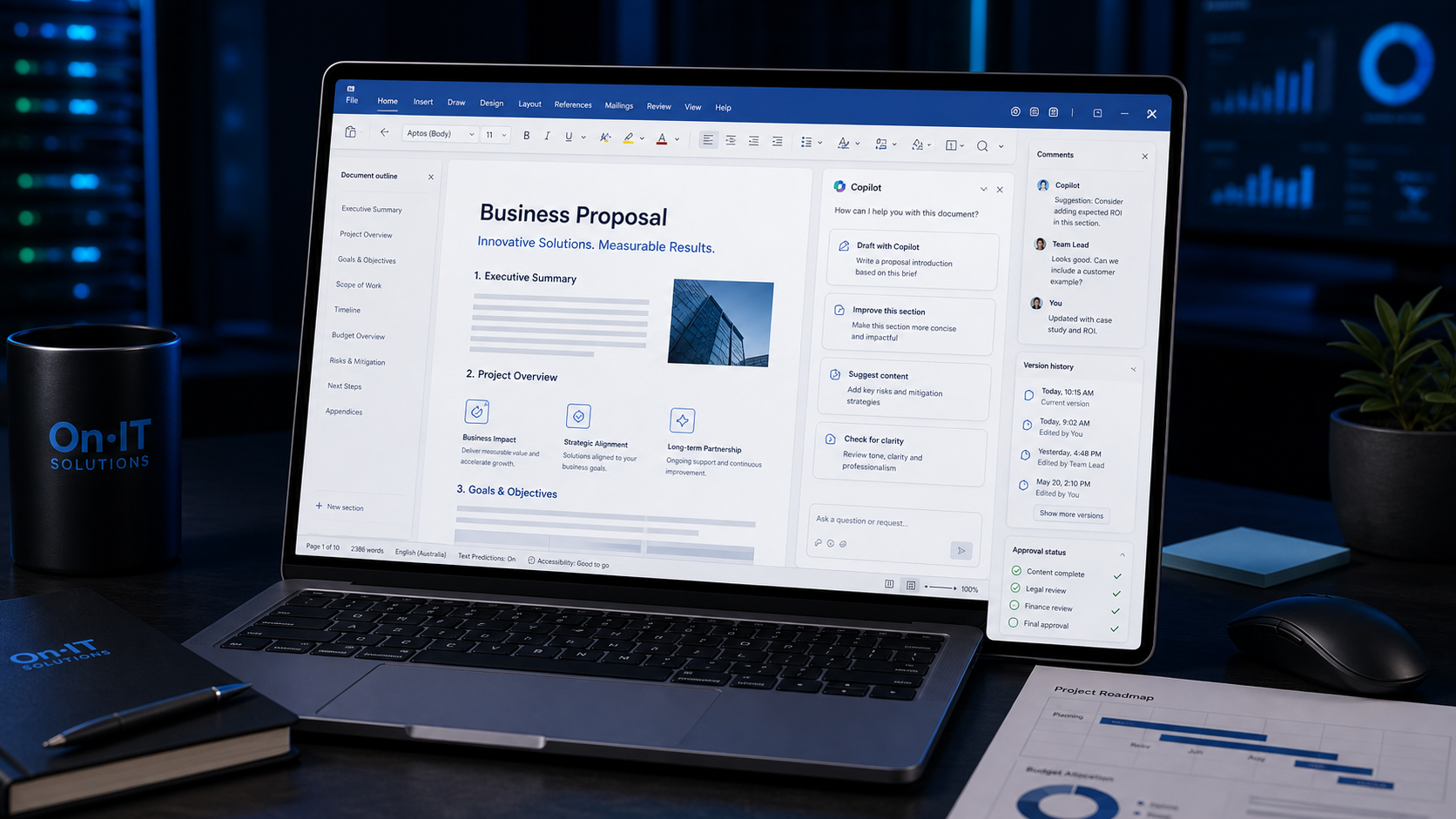
Staring at a blinking cursor while trying to draft a complex business proposal can stall your productivity for hours, especially when you have a mountain of other tasks competing for your attention. This is where Microsoft Copilot in Word steps in, acting as a sophisticated digital partner that helps Australian business owners overcome writer's block instantly. Rather than starting from scratch, you can now collaborate with an AI assistant that understands your business context and professional tone.
This tool is not just a basic chatbot; it is a deeply integrated feature that combines the power of Large Language Models (LLMs) with your specific organisational data. By securely accessing your emails, previous documents, and meeting notes, it can perform AI document drafting that feels authentic to your brand. For many small-to-medium businesses, this means the end of "blank page syndrome" and the beginning of a more streamlined approach to content creation.
Securing the Right Microsoft 365 Copilot License
Before you can start using these features, it is important to ensure your organisation has the correct technical foundation. To access these capabilities, your team members must already be using an eligible Microsoft 365 subscription, such as Business Standard, Business Premium, or Enterprise (E3 or E5). Once that foundation is in place, you must assign a specific Microsoft 365 Copilot license to each user who needs the AI features.
- Business Standard: A great entry point for small teams needing core productivity tools.
- Business Premium: Our recommended choice for most Australian SMBs, as it includes advanced cybersecurity protections.
- Enterprise Tiers: Best for larger organisations with complex compliance and data governance needs.
Efficiency Through Business Document Automation
The true value of this technology lies in business document automation. For a busy manager, Copilot can take a disparate list of bullet points from a recent meeting and transform them into a polished executive summary in seconds. It also excels at repetitive tasks like reformatting existing content to match a specific style guide or summarising lengthy reports into digestible briefings for stakeholders. This allows your team to spend less time on manual formatting and more time on high-level AI strategy and decision-making.
By automating the initial "heavy lifting" of drafting, your employees can focus on refining the message and ensuring accuracy. This collaborative process ensures that the final output is high quality while significantly reducing the total time spent on administrative paperwork. Getting the most out of this tool starts with understanding how to initiate that first conversation on the page.
How to Start a Draft with Microsoft Copilot in Word
Imagine sitting down to write a complex client proposal and having the first three pages already structured and formatted before you’ve even typed your first sentence. When you activate Microsoft Copilot in Word, this scenario becomes your daily reality, significantly reducing the cognitive load required to move from a concept to a finished product. For many Australian teams, this initial step is where the most time is reclaimed during the workday.
To begin AI document drafting, you simply need to follow these steps:
- Open the Microsoft Word application on your desktop or via your web browser.
- Create a new blank document; as soon as the page loads, you will see the Copilot prompt box appear automatically on the canvas with the text
Draft with Copilot. - If the box doesn't appear immediately, look for the small Copilot icon on the left margin or the
Copilotbutton in the Home ribbon. - Type your instructions into the box and select Generate to see the AI begin writing in real-time.
Crafting Precise Copilot Prompt Examples for Better Results
The quality of the output you receive is directly tied to the clarity of your instructions. While it might be tempting to provide a short command like "write a coffee proposal," providing context helps the AI understand your specific goals. Using detailed Copilot prompt examples ensures that the draft aligns with your business's unique voice and objectives rather than producing a generic template.
Consider the "Fourth Coffee" example used by Microsoft to demonstrate effective prompting. Instead of a vague request, a high-quality prompt would look like: "Write a proposal for a new flavor in the Fourth Coffee latte lineup, focusing on seasonal ingredients and a premium price point for the Sydney market." By including the brand name, the specific product, and the target market, you give the AI the boundaries it needs to be truly helpful.
Remember that you are the editor-in-chief of this process. If the first draft isn't quite right, you can use the Regenerate button to see a different version or type a follow-up instruction to adjust the tone. This iterative approach is a core part of modern cloud solutions, allowing for a collaborative workflow between human expertise and machine efficiency. Having a Microsoft 365 Copilot license essentially gives every staff member a personal writing assistant that never suffers from writer's block.
Once the initial draft is on the page, the real magic happens when you begin to pull in data from your other professional files to add depth and accuracy to the text.
Using Reference Files for Accurate Business Document Automation
One of the most common frustrations with AI is when the generated text feels too generic or misses the specific nuances of your company’s internal projects. By using Microsoft Copilot in Word, you can solve this issue by "grounding" your prompts in your own real-world data. This ensures the AI document drafting process is informed by your actual business context rather than just general internet knowledge, making the output significantly more useful for Australian SMBs.
Harnessing the Power of Grounding with the Forward Slash
The secret to high-quality business document automation lies in a single character: the / (forward slash) command. When you are in the Copilot prompt box, typing a forward slash allows you to search for and "attach" existing files, emails, or meeting notes to your request. This tells the AI exactly which sources it should study before it starts writing your new document.
To use this feature effectively, follow these steps:
- Click the Copilot icon on the left side of your document or press
Alt + Ito open the prompt box. - Start typing your instruction, such as "Draft a project proposal based on..."
- Type
/and begin typing the name of the file you want to reference. - Select the correct file from the list that appears.
- Repeat the process to add more context; you can select up to 20 different reference items for a single draft.
Why Grounding Matters for Your Business Data
Grounding is the technical term for anchoring the AI to specific, verifiable facts. When you provide Copilot prompt examples that include reference files, the AI doesn't have to guess your company's Key Performance Indicators (KPIs), specific branding guidelines, or project deadlines. It pulls that information directly from the sources you’ve provided, which drastically reduces the risk of the AI "hallucinating" or making up incorrect details.
For Australian businesses looking to scale their ai strategy, this level of accuracy is vital for maintaining professional standards. Whether you are drafting a tender response or an internal policy, referencing your existing documentation ensures that the tone remains consistent and the terminology matches what your team actually uses. This makes the transition to automated drafting much smoother for everyone involved.
Licensing Nuances for Referencing Files
It is important to note that the ability to reference files varies depending on your Microsoft 365 Copilot license type. Users with a full business license can typically reference files across the desktop version of Word, drawing from their entire cloud solutions environment. However, if you are using the personal "Copilot Pro" version, you may find that the ability to reference specific documents is often limited to Word for the web, rather than the desktop application.
Ensuring your team is equipped with the correct business-grade license ensures they have the full power of these referencing tools available in their preferred workspace. Once your draft is grounded in the right data and the initial text is generated, the next step is to refine that content until it is client-ready.
Refining Content with AI Document Drafting Features
Getting a first draft on the page is only half the battle; the real magic happens when you begin fine-tuning that initial output to match your specific brand voice. Using Microsoft Copilot in Word to refine your work allows you to pivot from a rough concept to a client-ready proposal in minutes. Once the system finishes the AI document drafting process, you aren't forced to accept the first result; you can choose to keep the text, discard it entirely, or ask the tool to regenerate the content with a slightly different focus.
Mastering the Iteration Loop with Copilot Prompt Examples
When you click the "Generate" button, the AI provides a draft based on your initial request. If the response is too wordy or misses a specific point, you can use the "Regenerate" feature to see a new version. This is the perfect time to experiment with Copilot prompt examples like "Summarise this into three punchy bullet points" or "Rewrite this to be more persuasive for a C-suite audience." This conversational approach to editing removes the friction of manual rewriting and helps you explore different ways to frame your message.
Polishing Tone and Visuals for Business Document Automation
Beyond creating new text, this tool excels at transforming existing content that you have already written. You can highlight a paragraph and ask the AI to rewrite it to adjust the tone—shifting from a casual internal update to a formal report suitable for a Microsoft 365 Copilot license holder's board meeting. Additionally, the tool can help with business document automation by generating executive summaries for 20-page reports or even suggesting relevant illustrations and imagery to break up large blocks of text, ensuring your documents are as engaging as they are informative.
Maintaining a Human-in-the-Loop Approach
While the efficiency gains are undeniable, the most successful Australian businesses treat AI as a high-speed assistant rather than a replacement for expert judgement. This "human-in-the-loop" strategy ensures that while the AI handles the bulk of the drafting, an employee provides the final review to check for technical accuracy and local context. Integrating these tools into your broader AI strategy allows your team to maintain high standards while significantly increasing their output volume. By combining your professional expertise with the speed of cloud solutions, you ensure every document sent to a client is both polished and precise.
Refining your content in this way ensures that your final output remains authentic to your business while benefitting from the speed and structural logic that artificial intelligence provides.
Best Practices for Secure AI Adoption in Australian SMBs
Keeping your company's intellectual property safe is likely your top priority when introducing any new technology into your office workflow. When you use Microsoft Copilot in Word, your sensitive business data remains within your own Microsoft 365 service boundary, often referred to as your "tenant." This means your private information, customer details, and trade secrets are not used to train the public Large Language Models that power other AI services. Microsoft’s enterprise-grade security ensures that the same protections applied to your emails and files also apply to every interaction you have with the AI assistant.
Maintaining Privacy during AI Document Drafting
For many business owners, the leap into AI document drafting feels like a risk to data sovereignty, but Microsoft 365 Copilot is built on a foundation of "permissioned access." The AI can only see and reference the files that the specific user already has permission to open. If a junior staff member doesn't have access to the company payroll folder, Copilot won't be able to pull data from those files either. This inherits your existing cloud solutions security settings, making it much safer than using free, public AI tools where data privacy is often non-existent.
Checklist for Safe AI Usage in Australia
To stay in alignment with the Australian Cyber Security Centre (ACSC) guidelines, it is vital to treat AI tools with the same rigour as any other critical business software. Ensuring your business document automation remains secure involves more than just a software update; it requires a culture of awareness. Use this checklist to verify your readiness:
- Implement the Essential Eight: Ensure your foundational cybersecurity is strong, specifically focusing on Multi-Factor Authentication (MFA) to protect your AI-enabled accounts.
- Establish a "Human-in-the-Loop" Policy: Never allow an AI-generated document to be sent to a client without a final review and sign-off by a staff member.
- Review Data Governance: Use Microsoft Purview or similar tools to label sensitive data, which helps Copilot understand what should be handled with extra care.
- Standardise Copilot Prompt Examples: Provide your team with a library of safe, effective prompts to ensure they aren't inadvertently pasting sensitive personal information into the
/command box.
Accuracy and Internal Policies
While AI can significantly speed up your workflow, it is not a replacement for professional judgement or subject matter expertise. Every piece of content created through AI document drafting should be checked for "hallucinations"—instances where the AI might confidently state an incorrect fact or date. We recommend setting a clear internal policy that outlines exactly which types of documents require secondary peer reviews. This ensures that your business maintains its reputation for accuracy while still reaping the efficiency benefits of automation.
Australian SMBs that embrace these tools responsibly today are positioning themselves for a massive competitive advantage in an increasingly digital economy. By mastering these tools now, you are building a more agile, modern workforce that can produce higher-quality work in a fraction of the time. Investing in a solid ai strategy ensures that your business stays ahead of the curve, allowing your team to innovate with confidence while your data remains protected.
Frequently Asked Questions
Does Microsoft Copilot in Word use my private business data to train its AI?
No. When using Microsoft 365 Copilot with a business license, your data remains within your organization's 'tenant.' It is protected by the same enterprise-grade security and compliance controls as your other Microsoft 365 services, and it is not used to train the underlying Large Language Models for other users.
Can I use Copilot to write a document based on a recorded Teams meeting?
Yes. By using the '/' command in the Word prompt box, you can search for and select meeting transcripts or summaries. Copilot will then reference the specific discussions and action items from that meeting to draft your document.
How many files can I reference when drafting a new document?
You can select up to 20 different items to reference for a single draft. These can include a mix of Word documents, PowerPoint presentations, and emails, allowing Copilot to pull in a wide variety of context for complex reports or proposals.
Why don't I see the Copilot button in my version of Word?
First, ensure you have an active Microsoft 365 Copilot license assigned to your account. If the license is active, make sure your Word app is fully updated and that you are signed in with your work email. If you are a Copilot Pro user, remember that referencing local files is currently limited to the web version of Word.
Sources
- https://support.microsoft.com/en-us/office/draft-and-add-content-with-copilot-in-word-069c91f0-9e42-4c9a-bbce-fddf5d581541
- https://www.velosio.com/blog/copilot-in-word/
- https://support.microsoft.com/en-us/office/welcome-to-copilot-in-word-2135e85f-a467-463b-b2f0-c51a46d625d1
- https://word.cloud.microsoft/create/en/copilot-in-word/
- https://support.microsoft.com/en-us/office/edit-with-copilot-in-word-647d5d14-eaec-4e8a-a574-7cefffa7f8f0
- https://learn.microsoft.com/en-us/answers/questions/5615926/how-do-i-integrate-microsoft-copilot-into-my-workf
Ready to Go Beyond the Basics?
AI tools are just the start. OnIT Solutions specialises in deploying custom AI Agents that automate real business workflows — from customer service to data analysis. Book a free AI Strategy session and see what's possible for your business.