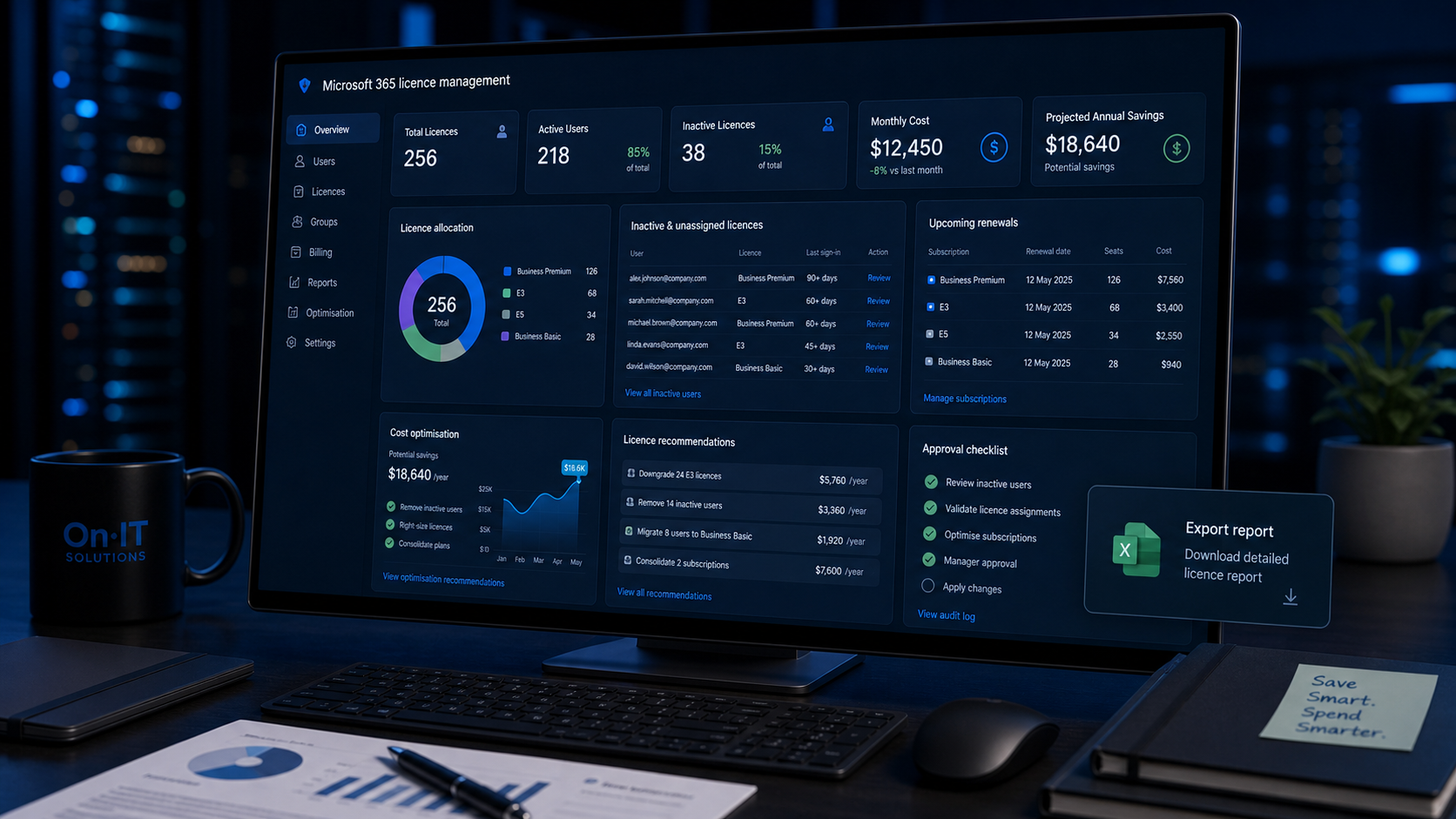
Australian businesses collectively waste millions of dollars each year on Microsoft 365 licences they don't actually need — and most have no idea it's happening. Whether it's former employees still holding active seats, the wrong licence tier assigned to a role, or forgotten premium add-ons from a project that wrapped up two years ago, the average SMB is overpaying by 15–30% on their monthly Microsoft bill. This practical guide walks you through every lever you can pull to cut costs without cutting productivity.
Auditing Your Current Microsoft 365 Baseline
Before you can trim the fat from your monthly subscription bill, you need a crystal-clear picture of what you are currently paying for. Many Australian small-to-medium businesses fall into the "set and forget" trap, where licences are added during periods of growth but never removed when the team scales back or changes shape. Conducting a comprehensive audit is the first step toward reclaiming your IT budget and ensuring your cloud solutions are working for you, not against you.
Identifying 'Zombie' Licences
In the world of IT management, "zombie" licences are assigned seats that are technically active and being paid for, yet the users haven't logged in for a significant amount of time. These are often the result of forgotten test accounts, former contractors, or employees who have moved to different roles that no longer require specific software. To find these, you should head to the Microsoft 365 Admin Center and look for the Reports section.
- Navigate to the
Reports > Usagearea in your admin portal. - Select the Microsoft 365 Apps or Active Users report to see a breakdown of last login dates.
- Filter the list to identify any users who haven't signed in for 30, 60, or 90 days.
- Cross-reference these names with your current staff list to see if the licence can be reclaimed or deleted entirely.
Reconciling Seat Count Against Headcount
Once you've identified individual inactive users, it’s time to look at the "Big Picture" numbers. You might be surprised to find that your total purchased seats exceed your actual headcount. This often happens because of "buffer" licences purchased during a busy period or left over from a previous project. Compare your latest invoice or the Billing > Your products section in the portal against your current HR payroll list.
If you have 50 staff members but are paying for 58 Microsoft 365 Business Premium licences, those 8 extra seats are costing your business hundreds of dollars every month for zero return. For an Australian SMB, that’s money that could be better spent on enhancing your cybersecurity posture or upgrading aging hardware. Identifying these immediate overages provides "quick wins" that demonstrate the value of proactive IT management to your leadership team.
Justifying IT Spend to Stakeholders
An audit isn't just about cutting costs; it's about transparency and accountability. When you present your findings to business owners or financial controllers, you aren't just saying "we're spending too much." Instead, you are providing a data-driven justification for your IT spend. You can show exactly how many staff members are supported, what tier of service they require, and how you have proactively eliminated waste.
Following the guidelines suggested by the Australian Cyber Security Centre (ACSC) regarding account management, regular audits also improve your security. Removing old, unused accounts reduces your "attack surface," making it harder for unauthorised parties to find a way into your systems. By framing your licence audit as both a cost-saving exercise and a security necessity, you make it much easier for stakeholders to support your broader technology goals. Establishing this baseline creates the foundation for more advanced strategies, such as mapping specific features to specific job roles.
Strategic Licence Mapping for User Roles
Many Australian businesses fall into the trap of "one size fits all" when it comes to technology. While assigning every employee the same high-tier licence might seem easier for your administration team, it is often a significant drain on your monthly budget. Strategic licence mapping involves matching the specific features of a Microsoft 365 tier to the actual day-to-day requirements of your staff members.
Distinguishing Between Web-Based and Desktop Needs
The first step in right-sizing your environment is identifying who truly needs installed desktop applications. For many roles in hospitality, retail, or logistics, staff may only need to check emails, view payslips, or access internal announcements. In these cases, an Office 365 E1 licence is often sufficient, providing web-based versions of Outlook, Word, and Excel at a fraction of the cost of higher tiers.
Conversely, your "power users"—such as those in finance, marketing, or administration—will likely require the Office 365 E3 tier. This provides the full desktop suite, allowing for complex Excel macros, offline document editing, and advanced compliance features. By separating your team into "Mobile/Web" and "Desktop" users, you can immediately reduce your cloud solutions expenditure without impacting productivity.
outlook.office.com in a web browser before making the switch.Evaluating the E5 "Premium" Gap
The Microsoft 365 E5 licence is the top-tier offering, but it comes with a premium price tag. For many Australian SMBs, the primary drivers for E5 are Power BI Pro for data analytics and advanced security features. However, we often find that businesses pay for E5 across the board when only a handful of senior managers or data analysts actually utilise the advanced reporting tools.
- Check your usage reports to see who is actually signing into Power BI.
- Determine if your cybersecurity requirements can be met by E3 plus a specific security add-on, rather than a full E5 seat.
- Downgrading a user from E5 to E3 can save your business approximately $15 to $20 per user, per month—a massive saving when scaled across a growing team.
Creating an Australian Role-Based Matrix
To prevent "feature creep"—where users are gradually moved to more expensive licences without justification—you should document which licences apply to specific roles within your organisation. This creates a clear standard for your IT department or MSP to follow during the onboarding process. A typical Australian business matrix might look like this:
- Frontline/Field Staff: Assigned Microsoft 365 F3 or Office 365 E1 (Web/Mobile access only).
- Standard Office Staff: Assigned Microsoft 365 Business Premium or Office 365 E3 (Full desktop apps and standard security).
- Data & Leadership Teams: Assigned Office 365 E5 (Only if Power BI Pro or advanced voice features are required).
Documenting these tiers ensures that when a new "Warehouse Coordinator" or "Admin Assistant" starts, they are automatically provisioned with the most cost-effective tools for their specific tasks. This proactive approach keeps your licensing costs predictable and aligned with your actual operational needs. With your roles clearly defined and mapped, you can then focus on ensuring these licences are reclaimed as soon as they are no longer needed.
Streamlining Offboarding and the Leaver Process
For many Australian businesses, the most common cause of "licence leakage" isn't a lack of auditing—it is a disconnected offboarding process. When an employee moves on to a new opportunity, the focus is naturally on the farewell lunch and the handover of physical assets like laptops and keys. However, if your IT department or managed IT provider isn't notified immediately, that user's Microsoft 365 licence can sit active and unused for months, quietly draining your budget.
Embed Licence Checks into Your Exit Checklist
To stop the bleed, licence reclamation must be an explicit step in your standard employee exit procedure. Rather than treating IT offboarding as an afterthought, it should be triggered the moment a resignation is accepted. This ensures that you aren't paying for a "ghost" seat during the weeks or months it takes to find a replacement.
- Update the HR Checklist: Ensure the HR exit form includes a mandatory tick-box for "Notify IT to reclaim M365 licence."
- Set a Deactivation Date: Schedule the account to be disabled at the close of business on the employee's final day.
- Review Monthly Invoices: Cross-reference your HR "Leavers List" against your
Billing > Your productsview in the admin portal to ensure no one was missed.
Tying De-provisioning to HR Triggers
In a busy SMB environment, manual emails often get lost. The most efficient way to manage licences is to tie de-provisioning tasks directly to HR triggers. If your business uses a modern payroll or HRIS platform, you can often automate a notification to your IT team. This prevents licences from lingering because "someone forgot to send the email." For Australian companies looking to scale, this level of coordination between departments is essential for maintaining cloud solutions that stay lean and cost-effective.
Retention vs. Deletion: Preserving Business Continuity
A common fear that stops managers from reclaiming licences is the loss of data. You might worry that if you remove the licence, the former employee’s emails and files will vanish. Fortunately, Microsoft 365 provides ways to retain data without paying for a full active licence. Before you hit "Delete," consider these steps:
- Convert to a Shared Mailbox: You can convert a departed user's mailbox into a Shared Mailbox. These are free (up to 50GB) and do not require a paid licence. This allows a manager to monitor incoming emails and access old correspondence.
- OneDrive Transfer: When you delete a user via
Users > Active users, the system will ask if you want to give another person access to their OneDrive files. You typically have 30 days to move these files before they are gone. - Litigation Holds: For roles with high compliance requirements, ensure you have an In-Place Hold or Litigation Hold active before removing the licence if you need to keep data for several years.
Adopt a "Recycle First" Mentality
When a new hire starts, the instinct is often to go to the portal and "Buy New." Instead, your policy should be to check for reclaimed licences first. By maintaining a small pool of unassigned seats—or simply reassigning a seat vacated the previous week—you avoid unnecessary transactions. This "recycle first" approach ensures your total seat count only grows when your actual headcount does, keeping your technology ROI as high as possible. Having these protocols in place prepares your business for more advanced management techniques, such as automating these very steps.
Automating Assignments via the Entra Admin Center
Manual licence management is often where the biggest budget leakages occur. As an Australian business grows, having an IT administrator manually tick boxes for every new hire or role change is not only slow—it is prone to human error. Microsoft Entra ID (formerly known as Azure Active Directory) provides a more sophisticated way to handle this through role-based automation. By shifting from individual assignments to group-based logic, you ensure your cloud solutions remain lean and cost-effective.
Accessing Your Inventory in Entra
To begin automating your licences, you need to move away from the basic M365 Admin Portal and into the Microsoft Entra Admin Center. This is the "engine room" where identity and access are managed at scale. Once logged in, you can gain a bird's-eye view of every seat you have purchased and, more importantly, how many are currently sitting idle.
- Log in to the Microsoft Entra Admin Center using your administrator credentials.
- In the left-hand navigation menu, expand the Billing section and select Licenses.
- Click on All Products. This screen displays your full inventory, including Microsoft 365 Business Premium, E3, E5, and any standalone "add-on" licences.
- Review the "Total," "Assigned," and "Available" columns to quickly spot where you are paying for unused capacity.
Implementing Group-Based Licensing
The most effective way to prevent "licence creep" is through group-based licensing. Instead of assigning a licence directly to a user, you assign the licence to a specific security group (e.g., "Marketing Team" or "Melbourne Office"). When a new employee is added to that group, Entra automatically assigns them the pre-approved licence tier. This is a foundational step in modern managed IT services that reduces administrative overhead and ensures consistency.
This method is particularly useful for managing role evolutions. If an employee moves from a frontline role to a management position, simply changing their group membership in Entra will swap their licence. This ensures they don't hold onto an expensive, high-tier licence they no longer need, or conversely, that they don't lack the tools required for their new responsibilities. It creates a "self-cleaning" ecosystem where access levels naturally align with the current payroll structure.
Handling Seasonal Projects and Contingent Workers
Many Australian businesses, particularly in sectors like retail, agriculture, or professional services during the end-of-financial-year (EOFY) peak, rely on temporary or contingent workers. Automating licence assignments for these users prevents the "ghosting" of licences once their contract ends. You can set up automated triggers or dynamic groups that assign specific, lower-cost licences (like Microsoft 365 F3 or E1) to users based on their "Contract End Date" attribute in your directory.
By using these automated triggers, you can scale your licence levels up or down in response to project demands without needing to audit the system manually every week. This responsiveness ensures that during peak times, your team has the Power BI Pro or advanced security features they need, but as soon as the project concludes, those costs are stripped back. This level of precision is exactly how savvy businesses maintain a high ROI on their technology spend while keeping their environment secure. Establishing these automated guardrails sets the stage for choosing the most cost-effective billing models available to your organization.
Negotiating Flexible Models for Seasonal Workloads
For many Australian businesses, staffing levels are not a static number. Retailers often scale up for the Christmas period, accounting firms see a surge during EOFY, and tourism operators might double their headcount during the winter or summer peaks. If your Microsoft 365 licensing remains at a fixed, high-tier level year-round, you are essentially paying for "ghost" features and seats during your quieter months. Mastering the art of flexible licensing ensures your cloud solutions investment remains lean and effective.
Evaluating Licensing Models for Your Usage Pattern
To stop overpaying, you must first understand the different ways Microsoft allows you to consume their services. While the "Perpetual" model (paying once for a specific version) is largely a thing of the past for cloud-based suites, businesses can still choose between various subscription types. Evaluating your specific usage patterns helps you decide whether a long-term commitment or a monthly flexible model is more cost-effective for your specific Australian enterprise.
- Annual Commitment: Offers a lower price point per seat but locks you into a specific quantity for 12 months.
- Monthly Subscription: Costs slightly more per seat (typically a 20% premium under the New Commerce Experience) but allows you to reduce seat counts at the end of any month.
- Hybrid Approach: Many savvy businesses keep a "base" number of staff on annual commitments and use monthly subscriptions for contractors or seasonal workers.
Using Data to Drive Seasonal Upgrades
You don’t always need to pay for a high-tier E5 licence to get advanced security or analytics features for every staff member all the time. By analysing your usage data, you might find that your workforce only requires basic features (Office 365 E1) for most of the year. During peak project periods, however, you might temporarily upgrade those specific users to E3 or E5 to access advanced compliance tools or Power BI capabilities.
- Review your historical usage data to identify which months require higher "feature density."
- Identify "Contingent Workers" who only need access to web-based email and Teams rather than full desktop applications.
- Schedule a "Licence Downgrade" event in your calendar for the week following your peak season to ensure you aren't rolled over into another high-cost month.
Leveraging the CSP Model with an Australian MSP
For small-to-medium businesses in Australia, negotiating directly with Microsoft can be a daunting and often impossible task. This is where working with a Cloud Solution Provider (CSP) via a managed IT service provider becomes a strategic advantage. A CSP agreement is designed for flexibility, allowing your partner to adjust your licence counts and tiers on your behalf, often with much faster turnaround times than traditional enterprise agreements.
When you work with a local MSP, you can renegotiate your "baseline" more frequently. They can help you navigate the complexities of Microsoft’s global pricing changes and ensure you are taking advantage of any local incentives or bundles. Instead of being locked into a flat, high-cost tier during your slower months, your MSP can proactively scale your environment down, ensuring your IT budget is spent on growth rather than idle software seats. This proactive adjustment keeps your overheads low and your team agile, no matter the season. Managing these fluctuations effectively is just one part of a broader strategy to ensure every dollar spent on technology delivers a measurable return.
Optimising for Long-Term ROI and Efficiency
Managing your Microsoft 365 environment is not a "set and forget" task. For many Australian small-to-medium businesses, the initial setup is just the beginning of a journey that requires ongoing attention to ensure your technology investment continues to provide a return on investment (ROI). By shifting from a reactive mindset to a proactive strategy, you can ensure that every dollar spent on cloud solutions is directly contributing to your company’s growth and operational efficiency.
Establish a Regular Review Cadence
The most effective way to maintain an efficient licensing environment is to establish a formal schedule for utilization reviews. In the fast-paced Australian business landscape—where team structures can change rapidly between the start of the financial year and the Christmas break—waiting twelve months to check your subscriptions is too long. We recommend a quarterly review cycle to ensure your licences remain aligned with your current business goals.
- Quarterly Audits: Set a recurring calendar invite for your IT lead or managed IT partner to review active vs. assigned licences every 90 days.
- Alignment with Hiring Cycles: Review your licence pool immediately following major recruitment drives or seasonal project completions.
- Budget Reconciliation: Cross-reference your Microsoft invoice with your internal HR headcount to ensure you aren't paying for "ghost" seats during slower months.
Hunting for Unused 'Add-ons' and Premium Features
Beyond the core licence tiers (like Business Standard or Premium), many businesses unknowingly accumulate "add-on" costs. These often include extra OneDrive or SharePoint storage, international calling plans for Teams, or advanced security features like Microsoft Defender for Endpoint that were trialled but never fully deployed. Over time, these small monthly fees add up to significant wastage.
During your quarterly review, navigate to the Billing section of your admin portal and specifically look for "Add-ons." Ask your team: Is anyone actually using the extra 1TB of storage we added for that 2022 project? Are the premium security features being actively monitored, or are they sitting idle? If a feature isn't being used to protect your business or improve productivity, it should be removed. This proactive approach ensures your cybersecurity spend is targeted and effective, rather than just an extra line item on an invoice.
Maximising Value Through Staff Education
ROI isn't just about spending less; it's about getting more out of what you already pay for. A "just enough" licensing strategy only works if your staff are proficient with the tools provided. Many Australian employees use only a fraction of the features available in their M365 suite, often defaulting to old habits or third-party (and potentially unsecure) apps because they aren't aware of the built-in alternatives.
- Feature Spotlights: Send out monthly tips on how to use tools like Microsoft Loop, Planner, or Bookings—features already included in most business licences.
- Shadow IT Reduction: Educate staff on how to use OneDrive for file sharing instead of paying for separate Dropbox or WeTransfer subscriptions.
- Security Awareness: Train users on the advanced security prompts they might see, ensuring that the "Premium" part of your Business Premium licence is actually protecting your data.
Staying proactive with your licence management is an ongoing process that directly impacts the bottom line for growing Australian companies. By regularly reviewing usage, cutting the fat of unused add-ons, and empowering your staff to use their tools effectively, you turn your Microsoft 365 subscription from a standard overhead into a streamlined engine for business success. This disciplined approach ensures that as your business evolves, your technology scales with you—efficiently, securely, and within budget.
Sources
- https://www.coreview.com/blog/what-is-m365-license-management
- https://www.syskit.com/blog/m365-license-optimization/
- https://www.syskit.com/blog/are-you-overpaying-for-m365/
- https://learn.microsoft.com/en-us/microsoft-365/admin/manage/assign-licenses-to-users?view=o365-worldwide
- https://learn.microsoft.com/en-us/answers/questions/5720593/how-do-reduce-the-number-of-microsoft-365-licenses
- https://www.logically.com/all-resources/the-it-leaders-guide-to-microsoft-365-licensing-optimization-in-2025
Need Expert IT Help?
Still stuck, or want this handled professionally? Our technicians provide fast remote and on-site IT support across Australia. Whether it's a one-off issue or ongoing support for your whole team, we've got you covered. Get in touch with OnIT Solutions today.
Further reading from OnIT Solutions
For related implementation guidance, see this OnIT Solutions service page and this supporting resource. These links help connect the article to practical next steps for Sydney businesses reviewing support, security, cloud or automation decisions.